

Configure the web application firewall
Open an App and select WAF. Where the firewall sits relative to routing and maintenance mode is explained in How domains, traffic controls, and the WAF fit together; the split between what synsmarts protects and what your Team owns is explained in Security and shared responsibility.
Only Team owners and admins can change an App’s WAF settings.
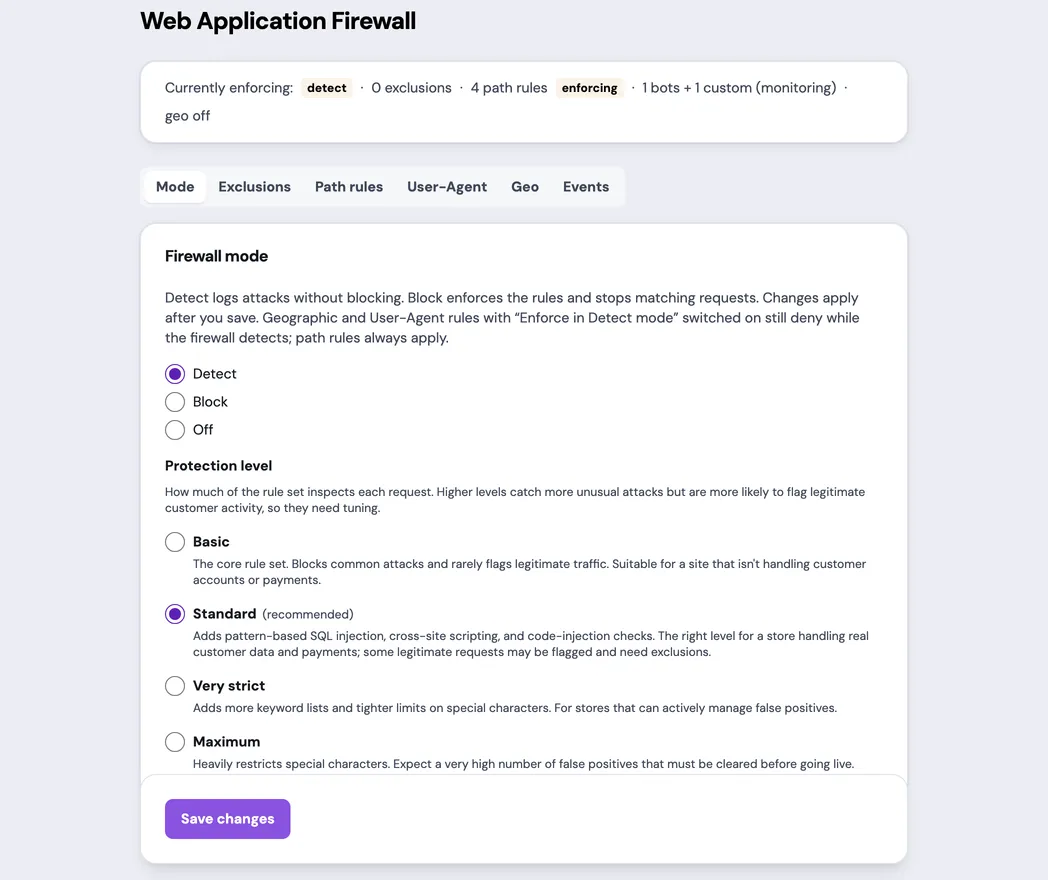
Choose a firewall mode
Section titled “Choose a firewall mode”- Block enforces the configured rules, and is where a new Magento or WordPress App starts. A new Shopware App starts in Detect, and an App created before November 6, 2026 stays in the mode it has until you change it.
- Detect records firewall-rule matches without blocking on those matches. Request-size controls, path rules, and enforced bot and geographic rules can still reject requests. Use Detect to observe firewall-rule impact before enforcing a new policy.
- Off disables synsmarts-managed WAF protection and requires confirmation. This change is audit-flagged. Your Team then owns replacement WAF coverage for that App, including any applicable PCI controls.
Choose a protection level
Section titled “Choose a protection level”Protection Level controls how many rule groups run:
- Basic runs the core rule set and rarely flags legitimate traffic. Suitable for a site that isn’t handling customer accounts or payments.
- Standard is the default and recommended level. It adds pattern-based SQL injection, cross-site scripting, and code-injection checks — the right level for a store handling real customer data and payments. Some legitimate requests may be flagged and need targeted exclusions.
- Very strict adds more keyword lists and tighter limits on special characters. For stores that can actively manage false positives.
- Maximum heavily restricts special characters and flags a large number of legitimate requests. Expect to clear those one at a time from recent events, in Detect mode, on the running App — there is no separate staging surface for firewall policy. Only worth choosing if you are prepared to work through them.
Spend time in Detect before moving an App to Block, and again before raising the level above Standard on an App already in Block. In Detect, firewall-rule matches are logged instead of blocked, so you can review recent WAF events for the App and add narrow exclusions for legitimate requests before enforcing. Request-size controls, path rules, and enforced bot and geographic rules remain active. WordPress and Magento admin, editor, and API endpoints are the usual source of the first exclusions. If you can’t distinguish legitimate matches from attacks, stay on Standard and contact support.
Clear a false positive
Section titled “Clear a false positive”Work from recent events, not from a list of rules. Each event shows what the firewall matched: the rule’s name (for example “SQL Injection Attack Detected via libinjection”), its category and severity, and the request path. Together those let you judge whether it was a real attack or one of your own legitimate requests.
When it was legitimate, use Exclude on that event. It stages an exclusion for that rule on that request’s path; review the staged change and save it. Repeat for each distinct false positive, then re-run the request that was flagged to confirm it now passes.
Some rules are shown as “Unnamed rule” with only an identifier. Those are internal firewall rules rather than attack checks — they decide whether the firewall blocks at all, so switching one off would disable protection for that path instead of fixing a false positive. They have no Exclude button, and an exclusion naming one is rejected when you save. They are still listed, so you always see everything that matched. If one is flagging legitimate traffic, contact support.
A rule excluded on a path stops applying to that path only. Don’t widen the path to make an exclusion “work”; a broader path silently turns the rule off for everything beneath it.
Allowed request methods
Section titled “Allowed request methods”The firewall accepts GET, HEAD, POST, OPTIONS, PUT, PATCH, and
DELETE, the methods the Magento, Shopware, and WordPress REST and admin APIs
use. Other methods, such as TRACE or WebDAV’s PROPFIND, are refused in Block
mode and logged in Detect mode.
Large request bodies
Section titled “Large request bodies”- The firewall inspects a JSON or form body whole, and refuses one larger than
2 MiB before it reaches the App, in every mode: with HTTP
400in Block mode and HTTP413in Detect mode. Your PHPpost_max_sizedoesn’t raise this limit. - A file upload (
multipart/form-data) isn’t refused for size. The firewall inspects its first 2 MiB and passes the rest. - A request that carries 10,000 or more values (form fields, or JSON keys and
array items) is refused with HTTP
400in Block mode and logged as a critical event in Detect mode. A 500-product Shopware sync carries about 6,000; a larger bulk call stays under it in smaller batches. - These limits are platform-wide. The CLI’s
request_body_max_bytescan lower the size limit for one App; nothing raises it.
Configure geographic rules
Section titled “Configure geographic rules”Geographic controls allow or deny selected countries on every domain the App serves, including Keep your own DNS domains. Confirm the direction before saving; reversing allow and deny changes the policy substantially. An enforced denial rejects the request even in Detect mode.
Restrict access to a path
Section titled “Restrict access to a path”Path rules control who can reach a path. They are the opposite of an exclusion: an exclusion removes firewall rules from a path, a path rule adds an access restriction to one. Path rules are enforced even in Detect mode: Detect pauses firewall-rule blocking, not access restrictions. Up to 20 rules per App, each with a path and one action:
- Block returns 403 for the path.
- Restrict by IP allows or denies a list of addresses or CIDR ranges. The editor shows the address you are connecting from and offers Use my IP to add it. It never adds that address for you, since the one you happen to be on right now may not be the one you want saved. If you build an allow list that doesn’t include you, the editor says so before you save. It applies on every domain the App serves, including Keep your own DNS domains.
- Password requires a username and password before the path is served.
- Rate limit caps how many requests one visitor can make to the path. Set the sustained rate in requests per second, and optionally a burst — the number of requests allowed back to back before the cap applies. Requests over the limit get a 429 response. The limit counts per visitor address, and addresses in the same IPv6 block share one budget so a visitor can’t get a fresh allowance by switching addresses.
A rule applies to that exact path. /admin doesn’t affect /admin/users or
/administrator unless you tick Also apply to everything under this path,
which the editor shows you an example of before you save. Query strings are
always included, so a rule on /xmlrpc.php still covers
/xmlrpc.php?for=jetpack. A rule also covers the same page requested through
the front controller: a rule on /admin applies to /index.php/admin too, and
a rule on / applies to /index.php. Path-rule denials appear in recent events
alongside geographic decisions.
Adding a password rule also adds a rate limit on the same path. Checking a password is deliberately slow, which is what makes guessing impractical — but it also means an attacker flooding the path costs your App real CPU. The rate limit is what keeps that bounded. It appears as an ordinary path rule you can edit or delete, and its 429s show up in recent events like any other denial.
Every new WordPress App starts with /xmlrpc.php blocked. It appears as an
ordinary path rule you can delete. Remove it if you use Jetpack or the WordPress
mobile apps, both of which need XML-RPC; once removed it doesn’t come back.
Review recent events
Section titled “Review recent events”Recent events show the source, path, transaction identifier, and matched rule names and identifiers available to customers. Use Exclude as a staging shortcut, then review the generated exclusion before saving.