

Manage deploys
Open an App and select Deploys to review its code sources, start a release, and follow every code or configuration operation. The page opens on Deploy; Build holds the build commands and History lists past deploys.
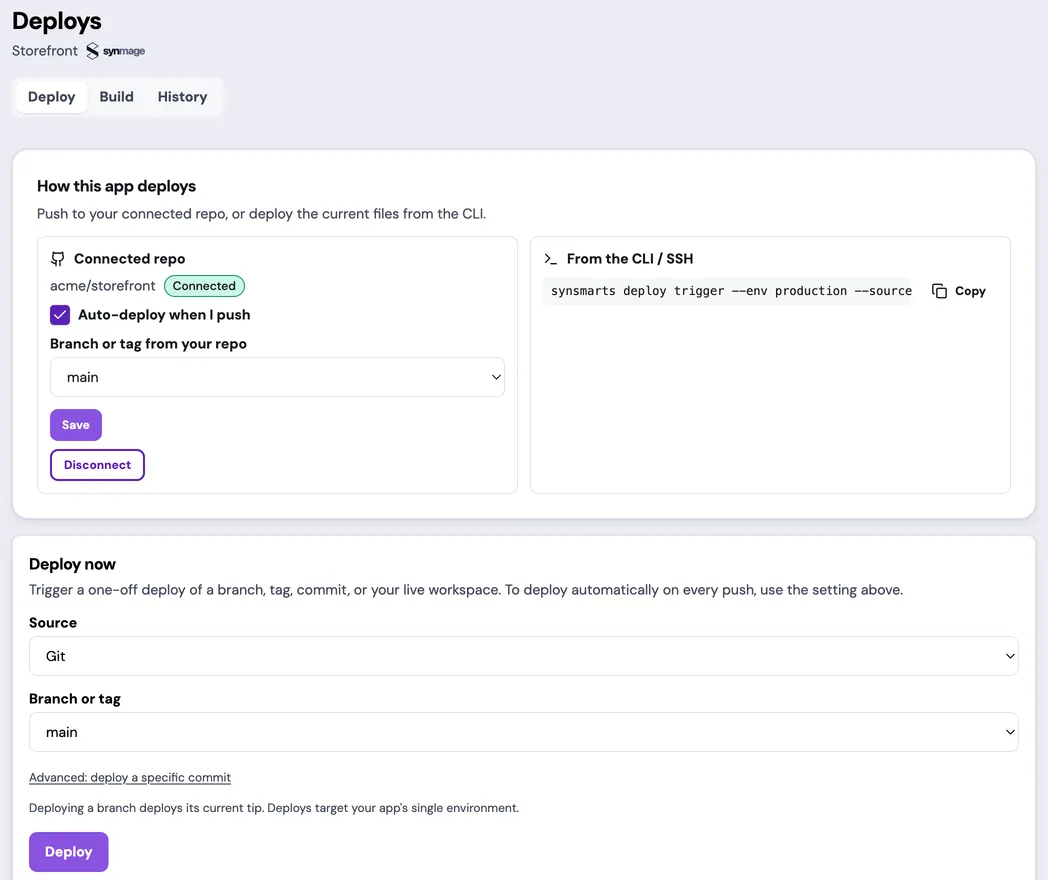
Understand deploy sources
Section titled “Understand deploy sources”The How this app deploys section shows two release sources:
- Connected repo deploys a branch, tag, or exact commit from the GitHub repository connected to the App. A green Connected status means the Team has an active GitHub App installation for the repository owner’s account. It doesn’t prove that a selected-repositories installation includes this repository; Git deploy validates repository access before building. Reconnect needed means the installation was removed or suspended, so Git deploys and push-triggered deploys are unavailable until it is reconnected.
- CLI / SSH deploys the eligible release files from the App’s current Workspace. It doesn’t select or change a Git reference.
Connecting a repository doesn’t automatically deploy every push. Automatic deploy is an explicit setting tied to one branch, one tag, or one tag pattern.
Git and Workspace are separate release inputs, not a two-way synchronization system. After a successful Git deploy finishes, synsmarts attempts to refresh the Workspace from the built release. That refresh doesn’t gate the Git release and can trail it by a few minutes, so verify the Workspace before publishing it. A Workspace deploy doesn’t commit changes to Git, and a later Git deploy can replace code that exists only in the Workspace. See Git and Workspace deploys for the complete model.
Connect a repository
Section titled “Connect a repository”When Connected repo says no repository is connected, an owner or admin can select Connect a repo. GitHub handles the account and repository permission grant; synsmarts then asks which permitted repository to bind to the existing App.
The connection action returns to Deploys. It doesn’t start a release or enable automatic deploys. See Connect a GitHub repository for the full procedure.
Start a deploy
Section titled “Start a deploy”Use Deploy now to choose Git or Workspace. For the full procedure, see Deploy from Git or Workspace.
From the managed shell or automation, use the synsmarts CLI to trigger, list, inspect, or roll back deploys.
Submitting a deploy starts a new operation; it doesn’t mean the release is live. The portal opens the deploy detail page and continues polling until the deploy reaches a terminal outcome. A Git deploy initially selects the connected repository’s default branch; you can choose another branch or tag or enter an exact commit SHA.
Automatic deploys are opt-in. Enable them only when every push to the selected
ref should become a release without another approval step. The branch, tag, or
tag pattern is stored per App, so Apps sharing a repository can use separate
release refs. A tag pattern such as v* releases every tag that matches it; a
plain tag name releases only that tag. Patterns use shell wildcards: * matches
any run of characters (including /), ? matches one character, and [0-9]
matches one character from a set. Matching is case-sensitive, and a pattern
needs at least one literal character outside brackets. Pushing the tag is the
trigger: a GitHub release published on a tag that was already pushed doesn’t
start a deploy.
If a matching push arrives while another deploy is active, synsmarts acknowledges the push but doesn’t queue another deploy. After the active deploy finishes, push again or manually deploy the skipped commit SHA.
Read deploy history
Section titled “Read deploy history”Each history row shows:
- the deploy identifier;
- its Git, Workspace, or configuration source;
- who or what triggered it;
- the App environment;
- its current status;
- when it started;
- Redeploy, when the stored source can be submitted again.
Redeploy resubmits the stored source reference from that history row. A commit SHA reproduces that exact Git revision. A branch or tag is resolved again and therefore deploys its current tip, not necessarily the commit used by the original operation. A Workspace redeploy creates a new snapshot of the current workspace because the workspace itself can change between operations.
Review a deploy
Section titled “Review a deploy”Open a deploy to review:
- its source type, source reference, and trigger;
- for a Git deploy, the commit the branch or tag resolved to (Source hash);
- the App configuration revision the deploy built (Configuration commit), when one was recorded;
- the current stage and timeline;
- configuration changes, when the deploy applies customer settings;
- the failure stage and customer-safe failure reason;
- rollback availability.
Not every deploy visits every phase. For example, a WordPress deploy skips database migration. See Deploy states and phases for the customer-visible vocabulary.
For Magento, Classifying can use a Git comparison or Workspace schema fingerprint before the build, followed by a schema inventory from the serving and candidate images. See How deploys move from code to traffic for the complete zero-downtime, maintenance, and recovery model.
The image digest identifies the exact built release when it is available. The source entry records whether the deploy used Git, Workspace, or configuration; for Git, use an exact commit SHA when reproducibility matters. When a Git deploy resolves to a commit that was already built, the Build card says no build ran and names that commit: the existing image was deployed again and the site stays as it was. Push a new commit, or choose Workspace, to publish new code.
A code deploy builds the App’s latest committed configuration. When a
configuration change was committed but hasn’t applied, for example because its
apply failed, the next code deploy builds with that change and applies it if
the deploy succeeds. Configuration commit names the revision the deploy
built; API and MCP clients read it as config_commit_sha, which is empty when
no revision was recorded. If the unapplied configuration can’t be read, the
deploy fails before the build and its failure reason names the commit. Fix or
revert that configuration change, then deploy again.
Understand configuration deploys
Section titled “Understand configuration deploys”Changes from Resources, Vars, scheduled jobs, NFS paths, services, and other App settings can also appear in Deploys. Their Source describes the customer action instead of exposing internal release details.
Open a configuration deploy to review Settings changed. The page shows the previous and new values when a field-level comparison is available. A configuration rollback creates a new operation that reapplies prior settings; it doesn’t erase the history row.
Handle superseded deploys
Section titled “Handle superseded deploys”A configuration deploy can be Superseded when another App change already holds the apply slot. The committed configuration remains pending and re-applies automatically after the active change completes. Don’t manually submit a duplicate while the active change or its follow-up is still running.
When a deploy fails
Section titled “When a deploy fails”Don’t immediately repeat the same deploy. Follow Recover from a failed deploy to identify the failed stage and correct the input first.
If the portal says status is stale or you are offline, don’t treat the last visible phase as a final result. Restore connectivity and wait for a fresh status before retrying, rolling back, or changing unrelated settings.
Roll back a release
Section titled “Roll back a release”Rollback behavior depends on what the release changed. Code-only and additive database changes can promote the prior immutable release image without discarding current data. Rollback doesn’t reread Git or Workspace. Self-service rollback for breaking database changes isn’t currently available; contact support. Restoring a pre-migration database after the migrated release has served traffic requires an explicit data-impact decision before any newer data can be discarded.
See Roll back a deploy before selecting a rollback action.
For application-specific source, build, migration, and verification rules, see Operate WordPress or Operate Magento.