

Review Team activity
Owners and admins can open Activity from the Team switcher. Developers and billing members don’t have access to this view. The full field, filter, action, and result vocabulary is listed in Team activity events.
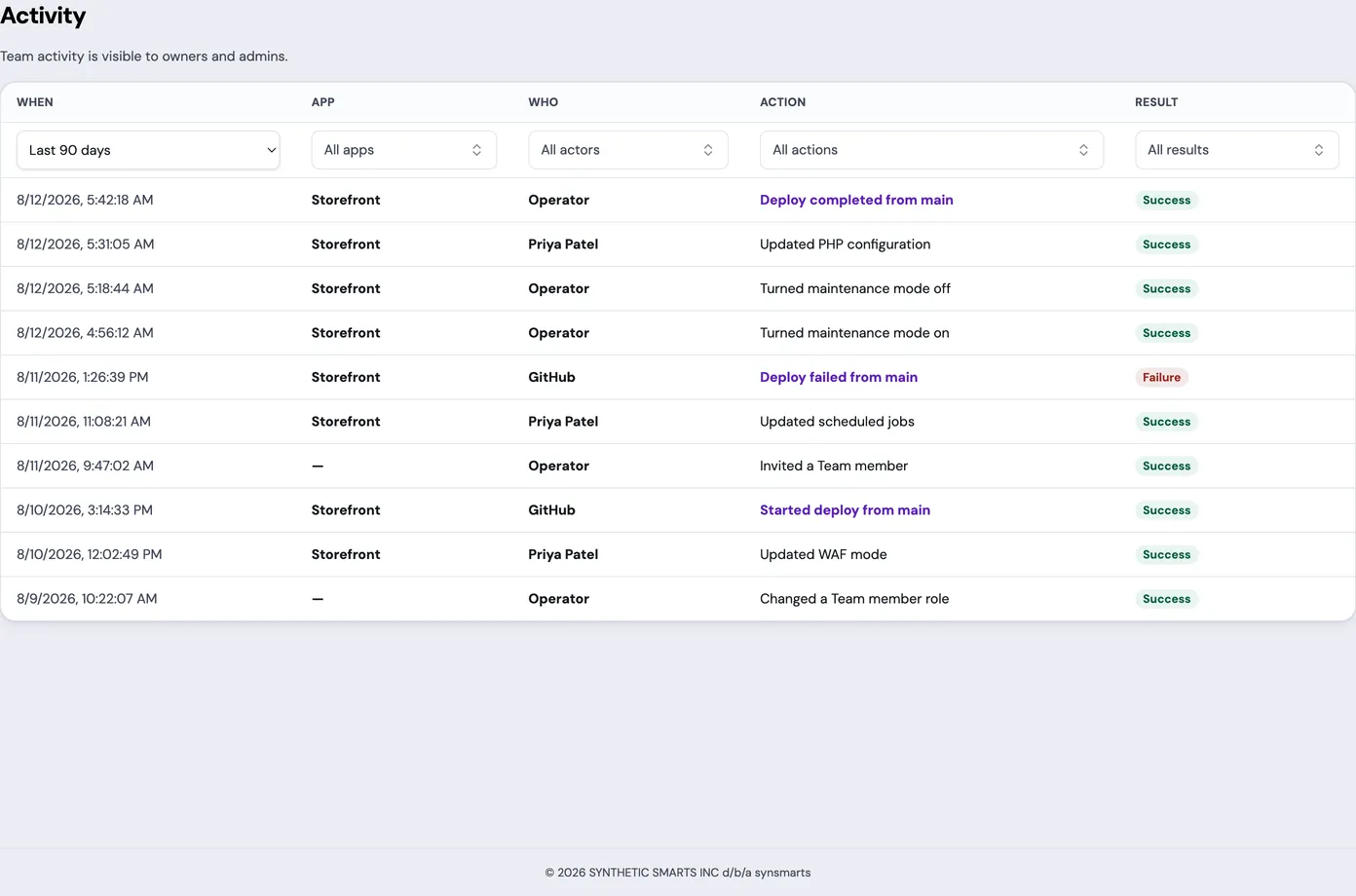
The table opens on the Last 90 days filter and shows customer-visible Team and App events in reverse chronological order.
Read the activity table
Section titled “Read the activity table”Each row shows:
- When the action occurred, in your local time;
- the affected App, or no App for Team-level activity;
- Who performed it, using a customer-safe display label;
- the human-readable Action, including repository context when a GitHub event can identify the affected repository safely;
- the Result, such as success, denied, error, failure, or pending.
App-level repository and configuration events use their Team-owned App reference. Restore events use the App recorded with the restore. Deployment activity uses the current deployment record when available. If a historical deployment was deleted, the row can still show its recorded Team-owned App, but it has no deployment detail link. When the deployment is still available to the Team, select its Action to open the deployment detail page.
GitHub events that occur before a repository is connected to an App appear only when the installation belongs unambiguously to the current Team.
The view includes customer-relevant Team and App operations. It doesn’t expose private platform operations, source addresses, raw internal details, or member email addresses as actor labels.
Request-tracing enabled, disabled, and reapplied outcomes appear here so an owner or admin can confirm who changed diagnostic coverage and whether the desired state was healed.
Filter activity
Section titled “Filter activity”Use the filter beneath each column to narrow the full Team history:
- choose a time window under When;
- open App and search for one or more Apps or No app;
- open Who and search for one or more actor labels;
- open Action and search for one or more recorded actions;
- open Result and search for one or more outcomes.
Selecting multiple values within one filter matches any selected value. Values selected across different columns must all match.
Changing a filter starts again from the newest matching event. The filters apply on the server, including matching events that weren’t loaded yet.
Load older activity
Section titled “Load older activity”Select Load more to append the next set of events. If loading the next page fails, the rows already on screen remain available; select Load more again to retry.
Use the activity view to confirm membership changes, started operations, or App modifications. An activity row records the result at that time; it doesn’t prove the App is still in the same state now.
If access or loading fails
Section titled “If access or loading fails”An access message means your current Team role can’t view activity or the Team isn’t available to your account. A temporary loading error includes Retry.
If you need help investigating a specific event, record its time, actor label, App, action, and result, then open a support request.