

Manage domains
Open an App and select Domains. Each domain has a setup mode. Delegated hostnames under the same root domain share one DNS zone and its status. How domains, traffic controls, and the WAF fit together explains why DNS ownership and certificate readiness are separate steps.
Your App’s synsmarts.io address is for previews and operations; search engines are told not to index it. Only your own domain is indexed, and it serves your App’s robots.txt unchanged, so going live needs no search setting change.
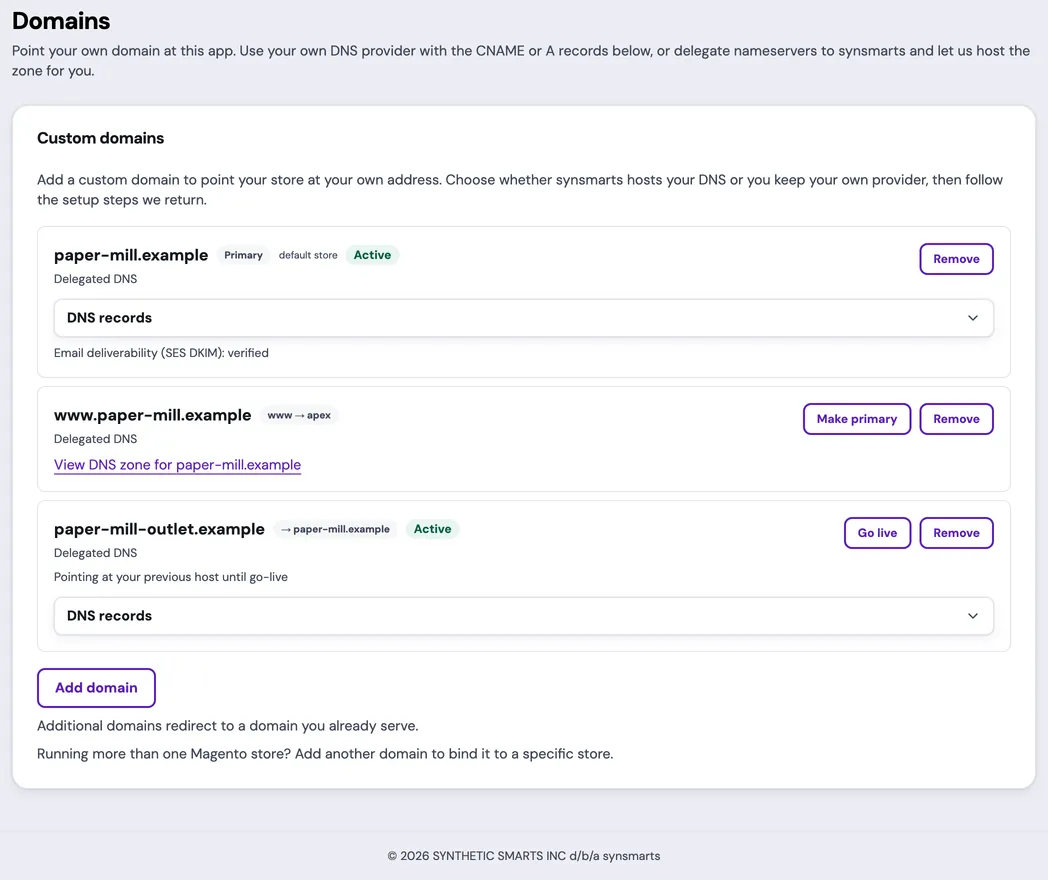
A delegated domain that still points at your previous host shows Go live. Move delegated DNS before go-live explains that mode and the switch.
Confirm permissions and prerequisites
Section titled “Confirm permissions and prerequisites”Only Team owners and admins can add, edit, re-sync, or remove domains and delegated-zone records.
Before adding a production hostname:
- confirm you control the domain’s registrar or current DNS provider;
- remove conflicting records for the exact hostname;
- decide whether synsmarts or your existing provider will be authoritative;
- inventory email, redirects, webhooks, payment callbacks, and integrations that use the hostname;
- for Magento multistore, create the target website in Magento before binding its domain.
The first custom domain becomes the App’s primary domain. synsmarts also claims
the corresponding apex or www hostname as a redirect where applicable. With
delegated DNS you can later swap which of the two is primary (see
Make www the primary domain); any other change
to the primary means removing and re-adding it, so add the hostname that
should own the App’s email identity first.
Every domain you add after the primary either redirects visitors to a domain the App already serves or, on a Magento App, routes to a specific store. Email sending stays on the primary’s domain.
On a Magento App, a domain with no store binding is labeled default store and serves the website Magento treats as the default.
A redirect row is marked www → apex when the www hostname forwards to its
apex, and → hostname when it forwards to another domain.
Choose how DNS is managed
Section titled “Choose how DNS is managed”- Delegate DNS to synsmarts lets synsmarts host the DNS zone and manage platform records.
- Keep your own DNS leaves the zone with your current provider. You create the records shown by the portal.
Choose one authority for the zone. Don’t create competing records at multiple providers.
Add a domain
Section titled “Add a domain”- Select Add domain.
- Enter the hostname exactly as customers will use it.
- Choose Delegate DNS to synsmarts or Keep your own DNS.
- If the App already has a primary domain, pick where visitors should land under Redirect to. The primary domain is preselected.
- Select Add domain.
The new row appears immediately while setup continues. Use the row’s status and instructions. Each row is labeled Delegated DNS or Your DNS; the add form’s current selection doesn’t change existing rows.
The primary domain’s row reports Email deliverability (SES DKIM); redirect
and store rows carry no email identity. When www is the primary, email still
sends from the apex, so your from-address can stay @example.com. For email setup and troubleshooting, see
Manage App email.
Set up delegated DNS
Section titled “Set up delegated DNS”The zone’s status, nameservers and records appear once for each root domain. Related hostname cards show View DNS zone for followed by the root domain. Select that link to reach the shared zone details.
- Add the domain with Delegate DNS to synsmarts.
- Wait for the assigned nameservers to appear.
- At the registrar, replace the domain’s current nameservers with every nameserver shown by the portal.
- Keep the portal open while delegation propagates.
- When the row becomes Active, verify HTTPS and email deliverability.
You can manage customer DNS records while delegation is pending. They begin resolving after delegation completes. Platform-managed site and email records are protected from customer deletion.
If status becomes Delegation lost, restore the displayed nameservers at the registrar and select Re-sync. If delegation times out, confirm the nameserver set has fully propagated before re-syncing.
Switch the nameservers within 28 days of adding the domain. A zone whose nameservers are never switched expires and shows Zone expired. When you’re ready to switch, select Re-sync to create a new zone, then set its new nameservers at the registrar; the old nameservers no longer work.
Set up external DNS
Section titled “Set up external DNS”- Add the domain with Keep your own DNS.
- For a subdomain, create the displayed CNAME record.
- For an apex or root domain that can’t use CNAME flattening, create every displayed A record instead.
- Add the displayed email records for the primary domain.
- Remove conflicting A, AAAA, or CNAME records for the same hostname.
- Wait for Verifying your DNS, Issuing certificate, and then Active.
While the certificate is being issued, visitors to the domain see a platform “Your site is being set up” page that refreshes on its own. It’s separate from your maintenance page, and it clears within a minute or two of the domain turning Active.
Copy every name and value exactly. Public resolvers must see the new answer; your local computer can continue using an old cached answer.
If certificate issuance reports a DNS restriction, review the domain’s CAA records and certificate-authority policy. After correcting DNS, select Re-sync.
A subdomain such as shop.example.com can use Keep your own DNS while
example.com is delegated. The apex and its www always share one mode.
Create the CNAME at your current provider. Once the nameservers move to
synsmarts, synsmarts publishes that CNAME in the delegated zone, so the
subdomain and its certificate keep working with no action from you. The
subdomain connects straight to the platform, without the Cloudflare CDN.
Understand domain status
Section titled “Understand domain status”Delegated DNS setup can show:
- Saving… while the add request is being accepted.
- Provisioning… while synsmarts creates the zone.
- Awaiting delegation while the registrar still needs the displayed nameservers.
- Active when delegation and platform setup are complete.
- Delegation lost when public nameservers no longer point to synsmarts.
- Delegation timed out when delegation didn’t complete in time.
- Zone expired when the nameservers were never switched within 28 days. Select Re-sync when you’re ready to switch.
- Failed when setup couldn’t complete. Follow the row’s message: retry temporary provider failures with Re-sync, but contact support for an account limit or credential failure.
- Removing or Deleted while or after the zone is removed.
External DNS rows can show:
- Saving… while the add request is being accepted.
- Provisioning… before the direct-DNS status is available.
- Verifying your DNS… while synsmarts waits for the CNAME or A records.
- DNS detected or Issuing certificate after DNS points correctly.
- Active when HTTPS serving is ready.
- Certificate error when issuance or renewal needs correction.
- Removed after an abandoned or deleted claim is cleaned up.
Verify the domain
Section titled “Verify the domain”The domain remains pending while public DNS, routing, and certificate checks complete. Propagation time depends on the previous record’s TTL and the DNS provider.
Use Re-sync when a row is stuck, delegation was lost, DNS was corrected, or certificate setup failed. Don’t repeatedly restart healthy Issuing certificate work.
The App’s site and admin links in the portal open the primary domain once the
App serves it: Active, and live rather than pointing at the previous host
until go-live. Until then they open the first Magento store domain the App
serves, or the App’s synsmarts.io address when it serves no domain yet.
Active means the hostname is serving over HTTPS. If a live external-DNS domain says the latest certificate renewal failed, current HTTPS serving can continue, but the renewal problem must be corrected before certificate expiry.
Verify the hostname from more than one network:
- Open the hostname over HTTPS and confirm the expected App.
- Confirm the certificate is valid for the hostname.
- Confirm the apex and
wwwbehavior is correct. - Test login, checkout, webhooks, payment callbacks, and any allowlists that use the hostname.
- For the primary domain, confirm email authentication becomes verified and test delivery to an external mailbox.
Review records
Section titled “Review records”For delegated DNS, select Manage DNS records. Platform-managed records are read-only. Customer-managed records such as additional MX, TXT, CNAME, SRV, or CAA records can be added or edited when they don’t collide with protected site or email records.
Records can be staged while delegation is pending or lost. They don’t resolve publicly until the registrar points the zone to the displayed nameservers.
Redirect an additional domain
Section titled “Redirect an additional domain”Use a redirect for an old brand, a country-specific spelling, or any hostname that should land on a domain the App already serves.
- Select Add domain.
- Enter the hostname.
- Under Redirect to, choose the primary domain or a Magento store domain.
- Choose the DNS mode and add the domain.
Once Active, the redirect domain serves over HTTPS and answers every
request with a permanent redirect (HTTP 301) to the target, keeping the request
path. Adding an apex also claims its www hostname as a redirect to the same
target. A redirect carries no email identity, so no email records appear on
its row.
The target must be a domain this App already serves. A redirect can’t point at another redirect or at a domain on a different App.
Make www the primary domain
Section titled “Make www the primary domain”If your store’s canonical address is www.example.com but the App has
example.com as its primary, swap them. This works for an apex and www pair
on delegated DNS.
- On the
www.example.comrow, select Make primary. - Confirm.
www.example.com becomes the primary and example.com redirects to it. Any
other domain that redirected to example.com now redirects to
www.example.com. Your DNS zone, records, and email identity stay the same. On
a Magento App, the store’s base URL moves to the new primary. To swap back,
select Make primary on the example.com row.
While www.example.com is primary, example.com holds the App’s email
identity, so the portal won’t remove it on its own. Remove the primary domain
instead, which removes both.
Hide a domain from search engines
Section titled “Hide a domain from search engines”Turn on Hide from search engines for a domain that serves a dev, staging, or test copy of your site. Each primary and store domain has its own toggle; redirect domains don’t need one.
- On the domain’s row, turn on Hide from search engines.
- synsmarts re-renders the App’s routing. Within a few minutes every page on
that domain, including
robots.txt, sendsX-Robots-Tag: noindex, nofollow, noarchive.
Your other domains keep serving your App’s own robots policy. Turn the toggle off to make the domain indexable again. A search engine drops a hidden page the next time it crawls it, so pages it already lists can take a while to disappear.
From the API, send PUT /api/v1/t/{team}/a/{app}/dns/domains/{name}/search-visibility
with {"hide_from_search": true, "revision": "<config_revision>"}, taking
config_revision from the domain list. The CLI runs
synsmarts deploy domain-search-visibility <domain> --hide (or --show), and
the Control MCP server offers set_domain_search_visibility.
Use your own certificate
Section titled “Use your own certificate”synsmarts issues and renews a certificate for every domain on its own. Upload your own certificate when you need one from a specific authority, such as an Extended Validation (EV) or Organization Validated (OV) certificate, or a wildcard you already bought. Only team owners and admins can upload one.
synsmarts serves an uploaded certificate from its own servers. A delegated domain that uses one switches from Cloudflare-proxied to DNS-only, so visitors reach synsmarts directly and see your certificate. That domain no longer goes through Cloudflare’s CDN. The WAF, page cache, and rate limits still apply. Your other domains are unaffected.
To upload a certificate and its private key:
- On the domain’s row, open Certificate and select Upload certificate.
- Paste the certificate in PEM form with the domain certificate first, followed by every intermediate certificate from your authority.
- Paste the unencrypted PEM private key that belongs to it.
- If the App also has the
wwwor root form of the domain and the certificate covers both, leave Also use it on selected. - Select Save certificate.
synsmarts checks that the key matches the certificate, the certificate covers each domain, the chain leads to a publicly trusted root, and the certificate hasn’t expired. If one of those checks fails, the upload is refused and nothing changes. The certificate and key are stored encrypted in your App’s secret store. They never appear in your configuration file or the dashboard after upload.
To keep the private key with synsmarts instead, select Create CSR, give the certificate signing request to your authority, then paste the certificate it issues and select Save certificate. No key is needed in that case.
The domain’s row shows the expiry date. Your certificate doesn’t renew itself, so upload the renewed one before it expires. synsmarts alerts its operators 30 days and 7 days before expiry. If the certificate does expire, synsmarts stops serving it: a delegated domain returns to Cloudflare and a synsmarts-managed certificate, and an external DNS domain to its synsmarts-managed certificate. Select Remove certificate to switch back yourself.
From the API, send POST /api/v1/t/{team}/a/{app}/dns/certificates with
certificate, private_key (or the csr_id of a request), domains, and the
revision from the domain list. Create a request with
POST /api/v1/t/{team}/a/{app}/dns/certificates/csr, and remove a certificate
with DELETE /api/v1/t/{team}/a/{app}/dns/domains/{name}/certificate?revision=<config_revision>.
The CLI runs synsmarts dns certificate-upload, synsmarts dns certificate-request,
and synsmarts dns certificate-remove. These operations aren’t on the MCP
servers, because an upload carries a private key.
Bind a Magento store domain
Section titled “Bind a Magento store domain”After a Magento App has a primary domain:
- Select Add domain.
- Open Advanced: bind to a specific store (multistore).
- Enter the existing Magento Website Code from Stores > All Stores.
- Choose the DNS mode and add the domain.
Opening the store binding replaces the Redirect to choice: a domain either redirects or serves a store. The code accepts lowercase letters, numbers, and underscores. synsmarts routes the hostname to that Magento website but doesn’t create the website. An incorrect or deleted code causes Magento to report that the requested store wasn’t found. Use Edit store to correct the binding.
Remove a domain
Section titled “Remove a domain”Confirm that no customers, redirects, integrations, or certificates still
depend on the hostname before removing it. Removing a domain also removes its
www redirect. The portal refuses to remove a domain while other domains
redirect to it; remove those redirect domains first.
Removing the only custom domain returns the App to its synsmarts.io address and email identity. For external DNS, remove the old provider record after the portal confirms removal. For delegated DNS, copy any customer-managed records that must survive elsewhere before changing nameservers.
When an App is deleted, its domains and hosted DNS zones are removed with it, even if your registrar or DNS records still point at synsmarts. The Team’s owners and admins receive an email listing each affected domain and the records that existed at removal so they can update DNS.
Recover from a problem
Section titled “Recover from a problem”- If domains can’t be loaded, reload the page before adding or removing anything.
- If setup is taking longer than expected, follow the row’s instructions and select Re-sync when it appears. The control is hidden during the initial setup grace period and healthy certificate issuance, and is briefly disabled after use.
- If a domain is already claimed, confirm it isn’t attached to another App or Team.
- If Magento reports that the requested store wasn’t found, select Edit store and correct the Website Code.
- If removing a domain is refused because other domains redirect to it, remove those redirect domains first, then remove the target.
- If a delegated zone is active but a customer-managed record is wrong, select Manage DNS records. Platform-managed records can’t be replaced.
- If a domain remains unavailable after DNS and certificate checks are correct, open an App-scoped support request.