

Manage billing
Open Billing from the Team selector.
CPU burst Off limits CPU execution. Memory use above the plan stays metered, so the plan price isn’t a maximum bill.
Review the current period
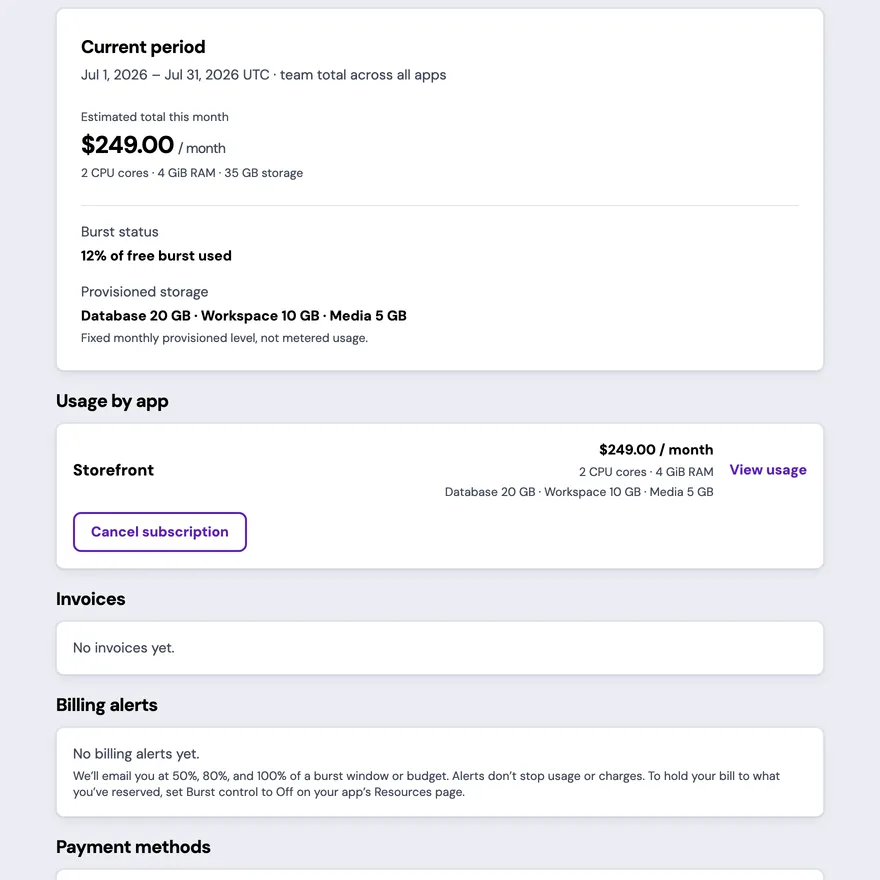
Section titled “Review the current period”Current period leads with the Team total for the displayed date range. The base amount reflects each App’s purchased resource shape. Provisioned database, workspace, and object storage appear separately, and burst usage appears when the App has consumed part of its free burst allowance.
The period is the calendar month in UTC, and the figures are a month-to-date estimate: the base amount plus burst so far, with a projection that assumes the current rate holds to month end. The invoice generated at the start of the next month is the record of what’s charged. Every App’s invoice charges the Team’s default card at charge time. Reviewing invoices covers payment statuses and retries.
Compare usage by App
Section titled “Compare usage by App”Usage by app separates each active App’s plan and storage amounts. Select View usage to inspect that App’s resource and spend details.
Manage an App spend cap
Section titled “Manage an App spend cap”Open the App’s Usage page to set, change, or remove its monthly spend cap. The page shows current spend against the cap and warns as the App approaches the limit. Review the impact before lowering a cap below current usage.
Review billing alerts
Section titled “Review billing alerts”The billing alert history records 50%, 80%, and 100% notices for burst windows and spend caps. An alert is a warning; it doesn’t stop usage or prove that an operation was blocked.
Manage payment methods
Section titled “Manage payment methods”Manage payment methods covers adding a card, changing the default, and removing a saved method.
Review invoices and refunds
Section titled “Review invoices and refunds”- Review invoices explains statuses, line items, upcoming adjustments, totals, and PDF downloads.
- Request and track a refund explains eligibility, amounts, review, and issuance status.
Review rates and cancellation
Section titled “Review rates and cancellation”Rates shows the current per-unit base and burst pricing used by the billing view. Storage doesn’t burst.
Annual renewal
Section titled “Annual renewal”An annual term renews automatically. Thirty days before the renewal date, you get an email showing the renewal amount and the default card that will be charged. On the renewal date, synsmarts charges that card at the rates current on that date. A rate change reaches your annual plan at renewal; your current term keeps its existing rates.
If the charge fails, synsmarts follows the same retry schedule as a monthly invoice and emails you after each failed attempt. If every retry fails, the term isn’t renewed and the plan continues month to month at the current rates.
Add or change the Team’s default card under Billing before the renewal date to avoid a failed charge.
Only the Team owner sees Cancel subscription for an App. The cancellation dialog offers two modes; review the impact and effective date it shows before confirming. Cancellation stops future billing. On a monthly plan nothing is refunded, because each month is billed after it’s served. On an annual plan, cancelling before the term ends files a refund request for the unused part of the prepaid term, and undoing the cancellation withdraws it — see Request and track a refund.
- End of billing cycle (default): the App keeps running until the end of the current month on a monthly plan, or until the end of the paid term on an annual plan, then shuts down. There is no extra charge.
- Cancel now: billing stops the moment you confirm, and synsmarts then shuts the App down. The dialog’s Final charge is a preview of the prorated amount. Missing pricing data can make that preview incomplete; check the final invoice for the amount charged.
Confirming records the cancellation; shutting down the App’s containers finishes afterward. In both modes the App’s data is kept for a 30-day grace window from the date the cancellation takes effect, during which you can undo the cancellation. Reactivating restarts the App’s workloads, so it takes a few minutes rather than being instant. After the grace window the data is permanently deleted.