

Review usage
Open an App and select Usage.
The page answers two separate questions: what the App is expected to cost for the current billing period, and whether its reserved resources fit the workload.
Confirm the App and billing period
Section titled “Confirm the App and billing period”The page heading shows the App and current billing-period dates. If the App in the URL can’t be resolved, the portal says that it is showing Team-wide totals instead. Return to the Team’s App list and reopen the intended App before making a resource decision from that fallback view. The fallback shows Team-wide plan and storage totals only: the burst allowance, right-sizing recommendation, usage trend, and any budget alert are App-scoped and don’t appear.
When the Team has no App usage rows yet, the page shows No usage data yet.
Read a budget alert
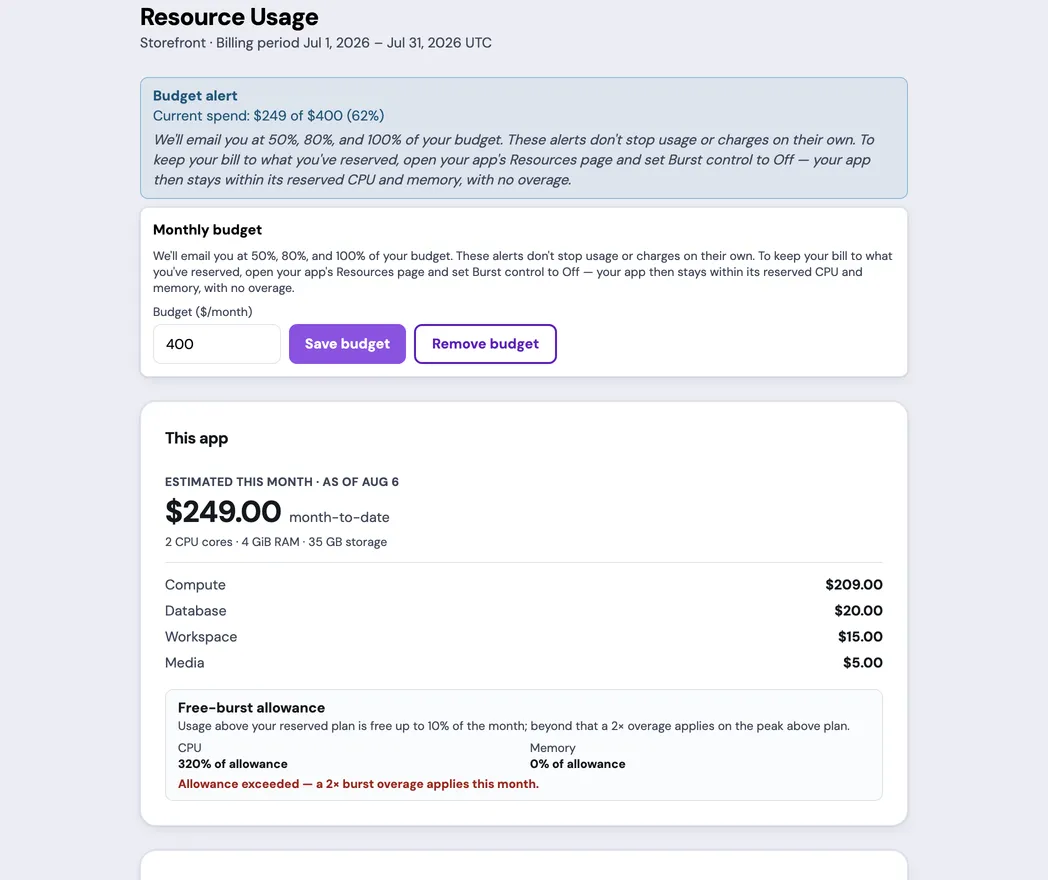
Section titled “Read a budget alert”When the App has a monthly budget set on the Monthly budget card and has spent at least half of that budget, a budget alert appears above the cost cards. The alert is informational: it doesn’t pause the App, disable burst, stop storage growth, or stop charges.
Use Manage resources to change burst controls or storage auto-expansion settings after checking the operational risks of a hard ceiling.
Read the plan and estimated cost
Section titled “Read the plan and estimated cost”The plan base is the monthly price of the App’s reserved CPU, memory, MySQL storage, workspace storage, and media storage, plus provisioned RabbitMQ broker storage even while the broker is suspended. The cost breakdown labels the media leg S3. The plan is based on the purchased resource shape, not on average utilization.
When burst data is healthy, the headline changes to Estimated this month and adds burst charges incurred so far to the plan base. This is a month-to-date amount, not the projected month-end total. If burst data is temporarily unavailable, the page keeps the firm plan base and says that burst is missing instead of presenting a confident zero.
The estimate excludes prorated plan-change adjustments and taxes. Review the Invoices page for upcoming adjustments and the final invoice.
On an annual plan the base is prepaid for the term, so the headline shows the prepaid monthly equivalent and the date the term ends, and the month’s estimate contains burst charges only. A plan change during the term is prorated at the term’s discounted rates on the next monthly invoice.
The cost breakdown separates compute and each storage type. When storage usage is available, it shows used capacity alongside purchased capacity. A missing used value is omitted rather than treated as zero.
Review the free-burst allowance
Section titled “Review the free-burst allowance”CPU and memory have independent burst-allowance indicators. The allowance is a percentage of the billing window’s minutes during which usage can run above the reserved level for free. Each indicator shows the percentage of that allowance already consumed, so 100% of allowance means the free-time gate has been reached, not that the App burst for the entire month.
After the threshold, the 2x factor applies to the excess above the applicable reserved base at twice its base per-unit rate. It doesn’t double the entire bill.
The page can show a month-end burst projection when the current pattern is measurable. Treat it as a forecast, not an invoice total. Review both CPU and memory because either dimension can exceed its allowance independently.
Compare utilization with the reservation
Section titled “Compare utilization with the reservation”Utilization & right-sizing shows the billing-period average CPU and memory consumption beside the reserved shape. Average utilization describes the period; it doesn’t show every short-lived peak.
A missing or degraded measurement is reported as Utilization unavailable, not as zero. The plan charge is unaffected because the plan base is the reserved shape. Wait for valid measurements before resizing.
Use the right-sizing recommendation
Section titled “Use the right-sizing recommendation”A recommendation appears only when recent 95th-percentile CPU and memory usage are both sufficiently below the reservation and the smaller supported shape would save money. It uses sustained recent load rather than the billing-period average so a recurring peak is less likely to be hidden.
The recommendation card states the window it evaluated, currently the trailing 7 days. An App younger than that window stays in the pending state.
A young App can show Right-sizing recommendation pending until enough usage history has accumulated. This is expected and doesn’t indicate a monitoring failure.
Use the recommendation as decision support. Check imports, deploy activity, checkout traffic, and other known plan-backed peaks before changing the App’s resources. Review Scheduled Jobs separately: they reserve no plan capacity, and their actual CPU and memory use is metered.
Read the CPU and memory trend
Section titled “Read the CPU and memory trend”Use the CPU and Memory controls under Usage trend to compare recent actual usage with the reserved line. Time above the line is where burst usage accrues. The line shows the App’s current reserved level, so after a recent resize the earlier part of the chart is plotted against the new reservation rather than the one that was in force then. A short spike and sustained pressure require different responses.
The chart can be absent when the App has no recent history or the metrics read is unavailable. Don’t infer zero usage from a missing chart.
Handle stale or incomplete data
Section titled “Handle stale or incomplete data”- Usage data may be stale means cached data is displayed after a refresh problem. Retry before making a change.
- No reserved resources means the App has no active plan reservation, so there is nothing to measure or right-size. It isn’t a metrics failure.
- Pricing unavailable means the reserved shape is shown without a price because no active subscription or rate could be resolved. Contact support before assuming the App is free.
- Burst usage is temporarily unavailable means the headline excludes burst and shows the plan base only.
- Utilization unavailable means actual CPU or memory couldn’t be read; it doesn’t change the reserved plan charge.
- Recommendation pending means more history is required, not that the App should keep its current shape permanently.
See Manage resources before applying a right-sizing change and Manage billing for Team-level billing controls.