

Manage maintenance mode
Open an App and select Maintenance. Where the maintenance page sits in the request path is explained in How domains, traffic controls, and the WAF fit together.
Team owners and admins can manage the page. Save changes doesn’t enable maintenance. The on/off toggle submits the full page currently shown in the editor, so confirming a toggle also saves any unsaved edits. Resolve editor validation errors before toggling.
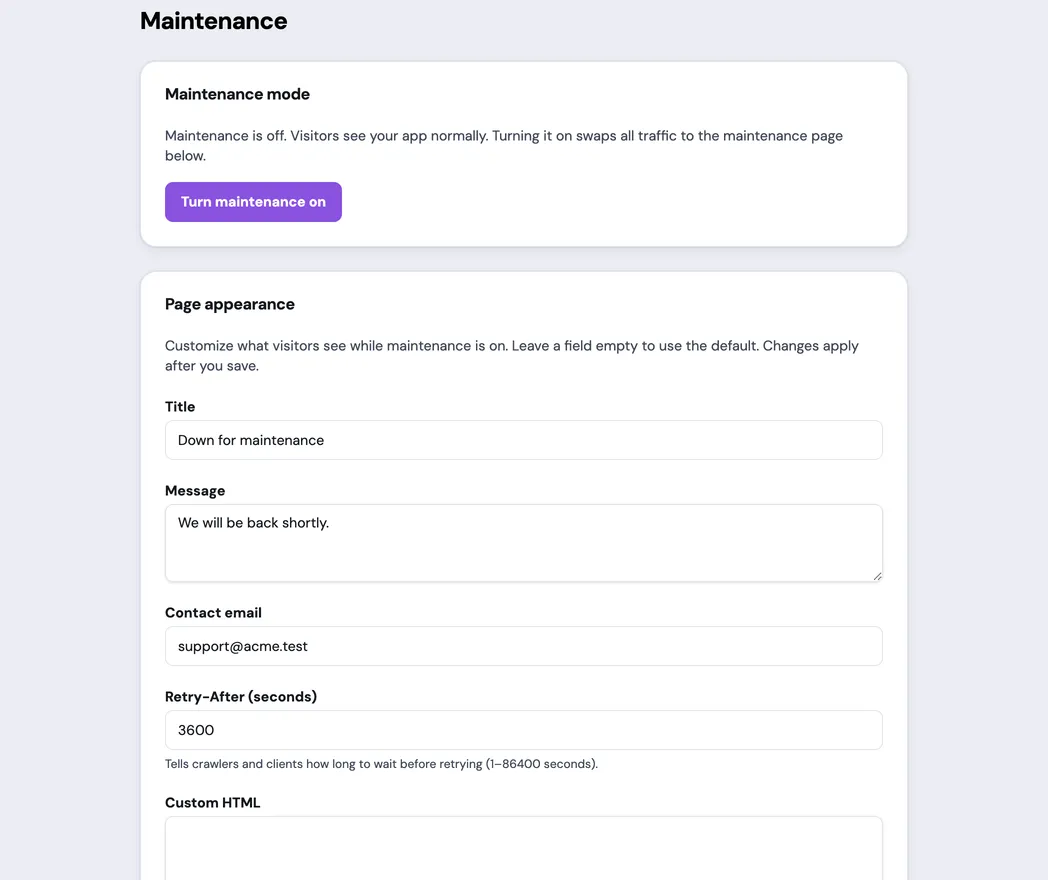
Configure the default page
Section titled “Configure the default page”Set the title, message, contact email, and Retry-After interval. Leave a field empty to use the platform default instead of pinning a custom value.
Retry-After tells crawlers and automated clients how long to wait before trying again. It must be a whole number from 1 through 86400 seconds.
Add custom HTML, CSS, and assets
Section titled “Add custom HTML, CSS, and assets”Use Custom HTML when the standard title and message layout isn’t enough. Paste your markup into the editor or select Upload HTML file. What you enter is published exactly as written. synsmarts doesn’t remove scripts, styles, links, or anything else.
- A complete page starts with
<!DOCTYPE html>or<html>(a byte order mark, whitespace, and HTML comments before it are fine). It’s served byte-for-byte, with your own<head>, styles, fonts, scripts, and title. Custom CSS isn’t added to a complete page, so put your styles in the page itself. - Anything else replaces the body of the default page. The default page keeps its document structure, character set, mobile viewport, default styles, and the browser tab title from Title, and Custom CSS is added after the default styles.
Your page can load fonts, stylesheets, images, and scripts from other sites,
for example a Google Fonts stylesheet such as
https://fonts.googleapis.com/css?family=Montserrat:300. Every version of the
page is still served with a 503 status, the Retry-After interval, and an
automatic refresh that returns visitors to the App when maintenance ends.
Other sites can’t show the page inside a frame.
Assets can be referenced from custom HTML with a root-relative path such as
/logo.png.
- Text assets support
.cssand.svgand are pasted into the editor. - Images support
.png,.jpg,.jpeg,.gif, and.webp. - Each image can be up to 5 MiB and 4096 by 4096 pixels.
- Referenced images can use up to 25 MiB in total for the App.
- Custom HTML can be up to 96 KiB.
- Custom CSS can use up to 32 KiB, and all text assets together can use up to 32 KiB, subject to the combined page-content limit shown by the portal.
- Asset names must be unique and use only letters, digits, dots, dashes, or underscores. Don’t include directories.
An image uploads when you choose the file, but it isn’t part of the published maintenance page until you select Save changes.
Preview before publishing
Section titled “Preview before publishing”Select Preview to open the draft in a new browser tab on your App’s own address. The page renders with the same checks used for a saved page, and fonts, stylesheets, images, and scripts load there as they will on the published page. Review the content, contact details, spacing, and contrast before enabling maintenance.
The preview doesn’t save the draft, change your live site, or turn maintenance on. Only the tab you opened shows it, and nothing is kept after you close the tab. If your browser blocks pop-ups, allow them for the portal and select Preview again.
Uploaded assets referenced by their App asset filename, such as /logo.png or
theme.css, are embedded in the preview. A large or temporarily unavailable
image can appear as a placeholder; confirm that the image row shows the
filename, size, and dimensions. If the tab shows your site’s own “not found”
page instead, save the page once and select Preview again.
Save and wait for the apply
Section titled “Save and wait for the apply”Select Save changes and wait for Saved - applying your changes to finish. The portal locks conflicting controls while the change is applying.
Saving an unchanged page can complete without a rollout. Don’t turn maintenance on until the saved page and its uploaded assets are ready.
Turn maintenance mode on
Section titled “Turn maintenance mode on”Select Turn maintenance on and confirm. All visitors see the maintenance page instead of the App until the change is turned off.
Wait for the apply status to complete before beginning work that assumes normal App traffic is no longer being served.
Turn maintenance mode off
Section titled “Turn maintenance mode off”Verify the App is ready, then select Turn maintenance off. Confirm that the apply status completes and the live URL serves the App again. Visitors who keep the maintenance page open are periodically refreshed so they can return to the App after maintenance ends.
While synsmarts holds maintenance for a database or cache change, the portal shows the hold. Turning maintenance off saves your setting but doesn’t lower the page. The page comes down when synsmarts confirms the service is healthy.
Recover from conflicts or an uncertain apply
Section titled “Recover from conflicts or an uncertain apply”- A previous maintenance change is still being applied: wait for it to finish before editing or toggling again.
- Settings changed since you opened them or another change is in progress: select Load the latest, review the current state, and reapply only the changes that are still required.
- The change couldn’t be applied: adjust the page if the portal identifies a validation problem. Otherwise load the latest state before retrying.
- The maintenance service is temporarily unavailable: wait for the displayed retry interval, then submit the change again.
- synsmarts is holding maintenance for a service change: wait for the change to finish. Your toggle doesn’t lower the page until synsmarts confirms service health. If the hold stays after the change reports failed, get support.
- The portal couldn’t confirm the change finished: select Load the latest. Don’t assume the previous click failed and submit a conflicting change.
- An image upload fails: confirm the format, file size, dimensions, and extension. Replacing an image with a different format also requires the matching filename extension.
After any recovery, verify both the portal state and the public App URL.