

Connect an MCP client
This tutorial connects an MCP client to synsmarts and verifies that the client can see only the tools and Apps allowed by its Team access.
Before you begin
Section titled “Before you begin”You need:
- Claude Code or Codex on the computer where you will use synsmarts;
- an active membership with MCP access switched on in the Team you want to authorize;
- for Diagnostics or Control App-scoped tools, at least one App included by the connection.
Human users authorize with an OAuth authorization code with PKCE. Agents, bots, service accounts, and unattended automation use the Team-owned client credentials created for them.
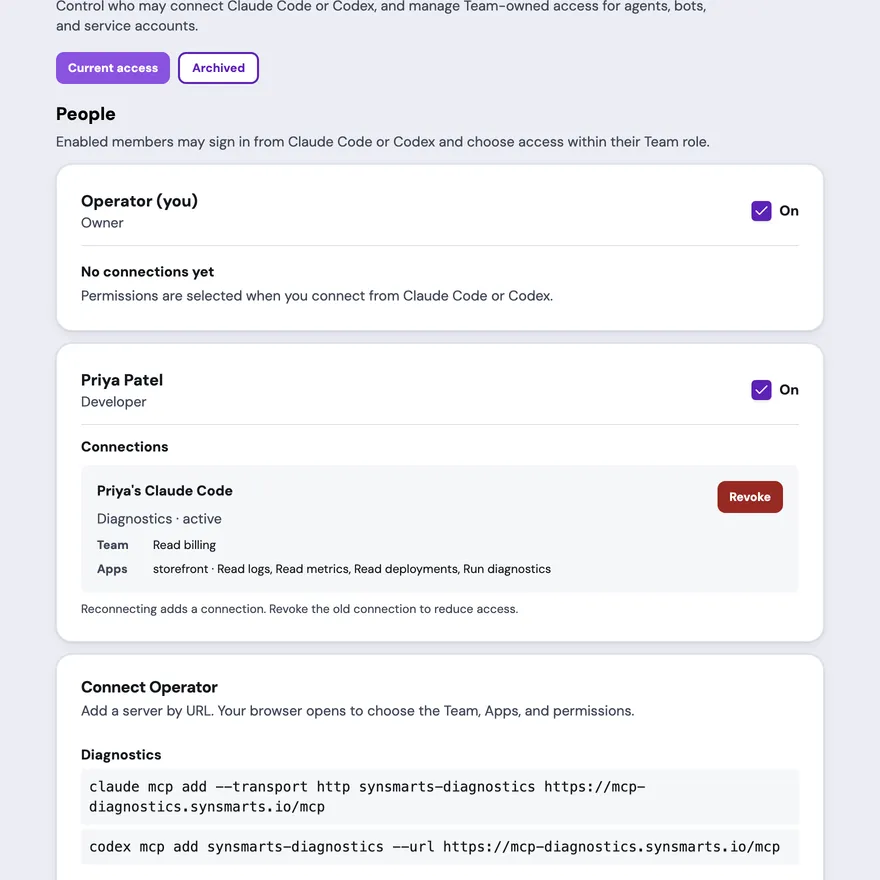
Human connections start in Claude Code or Codex. The browser consent screen creates a connection after you choose the Team, Apps, and permissions. You don’t enter a client ID, client secret, callback port, or redirect URI.
Owners and admins switch People on and create machine access separately on the Team’s MCP access page. Machine secrets are shown once.
1. Choose a server
Section titled “1. Choose a server”Choose one customer server:
| Goal | Server URL |
|---|---|
| Observe, investigate, and analyze Apps without changing them | https://mcp-diagnostics.synsmarts.io/mcp |
| Run validated customer operations that can change an App or Team | https://mcp-control.synsmarts.io/mcp |
| Search and read published synsmarts customer documentation | https://mcp-docs.synsmarts.io/mcp |
Each connection and access token belongs to exactly one protected server. Diagnostics and Control tokens aren’t interchangeable. Docs is public and needs no access or access token.
2. Connect Claude Code
Section titled “2. Connect Claude Code”Run the command for the surface you selected:
claude mcp add --transport http synsmarts-diagnostics https://mcp-diagnostics.synsmarts.io/mcpclaude mcp add --transport http synsmarts-control https://mcp-control.synsmarts.io/mcpclaude mcp add --transport http synsmarts-docs https://mcp-docs.synsmarts.io/mcpAdd only the surfaces you intend to use. Claude Code discovers its public OAuth client metadata automatically.
3. Connect Codex
Section titled “3. Connect Codex”Run the matching add and login commands for Diagnostics or Control:
codex mcp add synsmarts-diagnostics --url https://mcp-diagnostics.synsmarts.io/mcpcodex mcp login synsmarts-diagnosticsReplace diagnostics with control for the Control surface. Codex registers
itself automatically before opening the browser.
Docs needs only the add command:
codex mcp add synsmarts-docs --url https://mcp-docs.synsmarts.io/mcpUse a recognizable local name such as synsmarts diagnostics,
synsmarts control, or synsmarts docs. The local name doesn’t change the server, Team, Apps, or
permissions associated with the connection.
4. Authorize Diagnostics or Control
Section titled “4. Authorize Diagnostics or Control”Review the scope being authorized before you approve it:
- Complete browser sign-in if requested.
- Review the Team, MCP surface, Apps, and permissions.
- Select Authorize.
- Return to Claude Code or Codex.
Authorization creates a separate human connection for that client and surface. It is limited by your Team role: developers can choose App-scoped Diagnostics or Control, while billing members can choose only Diagnostics billing read. No MCP-specific two-factor enrollment or step-up is required. Reconnecting adds another connection; it doesn’t narrow or replace an older one. Revoke the old connection when you reconnect with less access.
Skip this step for Docs. For unattended Diagnostics or Control automation, configure the machine client credential instead of copying a human token. Access tokens are short-lived and bound to the selected server’s OAuth resource.
Keep access tokens out of prompts, source control, shell history, and any client configuration field that isn’t protected as a credential.
5. Connect an agent, bot, or service account
Section titled “5. Connect an agent, bot, or service account”Use this flow only for unattended Diagnostics or Control clients. Human users should use the browser authorization flow above.
An owner or admin creates the machine access from the Team’s MCP access page:
- Open Agents, bots & service accounts and select Create access.
- Enter one recognizable Name for the machine.
- Choose Diagnostics or Control, the allowed Apps, and the permissions.
- Create the access and copy the client ID and client secret. The secret is shown once.
- Store the secret in a secrets manager. Inject it into the process environment at runtime; don’t commit it to a repository or save it in an MCP configuration file.
The following local shell example obtains a Diagnostics token. It prompts for the one-time secret so the secret itself doesn’t appear in shell history:
export SYNSMARTS_CLIENT_ID='your-client-id'read -rsp 'synsmarts client secret: ' SYNSMARTS_CLIENT_SECRET && echoexport SYNSMARTS_MACHINE_TOKEN="$( curl --fail-with-body --silent --show-error \ --request POST https://api.synsmarts.io/identity/o/api/token \ --header 'Content-Type: application/x-www-form-urlencoded' \ --data-urlencode 'grant_type=client_credentials' \ --data-urlencode "client_id=${SYNSMARTS_CLIENT_ID}" \ --data-urlencode "client_secret=${SYNSMARTS_CLIENT_SECRET}" \ --data-urlencode 'resource=https://mcp-diagnostics.synsmarts.io' \ --data-urlencode 'scope=diagnostics' | jq -er '.access_token')"unset SYNSMARTS_CLIENT_SECRETFor Control, replace both diagnostics values with control. A token minted
for one surface can’t authorize the other. In production automation, have
your secrets manager inject the client credential and refresh the short-lived
token before it expires.
Connect the machine from Codex
Section titled “Connect the machine from Codex”Codex reads the bearer token from the named environment variable:
codex mcp add synsmarts-diagnostics-machine \ --url https://mcp-diagnostics.synsmarts.io/mcp \ --bearer-token-env-var SYNSMARTS_MACHINE_TOKENSkip codex mcp login for this connection — that command starts the human
browser flow.
Connect the machine from Claude Code
Section titled “Connect the machine from Claude Code”Create a project .mcp.json entry that references the environment variable.
Claude Code expands ${SYNSMARTS_MACHINE_TOKEN} at runtime:
{ "mcpServers": { "synsmarts-diagnostics-machine": { "type": "http", "url": "https://mcp-diagnostics.synsmarts.io/mcp", "headers": { "Authorization": "Bearer ${SYNSMARTS_MACHINE_TOKEN}" } } }}The file contains only the variable name, not the token. Start Claude Code
from an environment where SYNSMARTS_MACHINE_TOKEN is set.
Rotate, revoke, or archive machine access
Section titled “Rotate, revoke, or archive machine access”- Rotate creates a replacement secret and immediately invalidates the old secret and its issued tokens. Update the secrets manager, obtain a new token, and restart or reconnect the client.
- Revoke immediately stops the credential and its issued tokens from authorizing MCP calls.
- Archive moves revoked access into history. Archived history has no Create action. Unarchive it only to return the still-revoked record to the revoked list; it never restores access.
6. Discover the server and tools
Section titled “6. Discover the server and tools”Let the client complete server/discover and request tools/list. The returned
tool list is filtered by:
- the connection’s Diagnostics or Control surface, or the public Docs catalog;
- the connection’s Team permissions;
- its wildcard or explicit App permissions;
- the Apps that currently belong to the Team.
The client must use the returned tool names and JSON Schemas. A tool omitted from discovery isn’t available to that connection.
7. List visible Apps
Section titled “7. List visible Apps”On Diagnostics or Control, call list_apps. It returns only the
Apps currently resolvable through the connection, with the effective permissions
for each App.
Docs doesn’t expose list_apps. Skip this step for Docs.
Select one returned App identifier for the verification call, and use only
identifiers that list_apps returned: a foreign, moved, or ungranted App is
deliberately indistinguishable from a missing App.
A Team-only Control connection for billing, membership, helpdesk, or another
Team-scoped capability may return no Apps. In that case, skip the App-scoped
verification and select a non-mutating Team tool returned by tools/list.
8. Make a read-only verification call
Section titled “8. Make a read-only verification call”On Diagnostics, choose a read-only status or inventory tool returned by
tools/list, provide the selected App identifier, and submit the call.
On Control, choose a supporting read such as current state, allowed values, a preview, or operation status — a read proves the connection without changing the App, so a mutating tool is never the right connectivity test.
On Docs, choose a search or read tool returned by tools/list and confirm that
the result comes only from published customer documentation.
Verify the connection
Section titled “Verify the connection”The connection is ready when:
- server discovery completes; protected surfaces have no OAuth or audience error and Docs doesn’t initiate OAuth;
tools/listreturns only tools appropriate to the connection;list_appsreturns only expected Apps, or none for an intentionally Team-only Control connection; Docs doesn’t exposelist_apps;- the verification call returns a bounded structured result;
- when the result or its operation record includes a request or trace identifier, you record it for support correlation.
If authorization changes while the client is connected, call tools/list
again or reconnect. Capability-change subscriptions aren’t available yet.
Fix a failed first connection
Section titled “Fix a failed first connection”- Wrong audience: confirm the client URL matches the connection’s selected Diagnostics or Control surface, then authorize again for that resource.
- Browser does not open: run the client’s login command again. Don’t add a callback port or redirect URI manually.
- Machine token request returns
invalid_client: replace a mistyped, rotated, or revoked client credential. Never fall back to a human token. - Machine MCP call returns unauthorized: obtain a fresh token and confirm
its
resourceandscopematch the server URL. - Team missing from browser consent: ask an owner or admin to switch your MCP access on. If it was turned off, prior human connections were revoked.
- No visible Apps: for Diagnostics or App-scoped Control, have an owner or admin adjust machine access, or authorize a new human connection with the required Apps. An intentionally Team-only owner/admin Control connection may have no Apps.