

Manage resources
Open an App and select Resources. The page is divided into Plan, Shape, and Burst tabs.
Only Team owners and admins can change an App’s resources. How resources and usage relate explains the purchased shape, allocations, and burst that this page edits; the stable rules are listed in Resource limits and quotas.
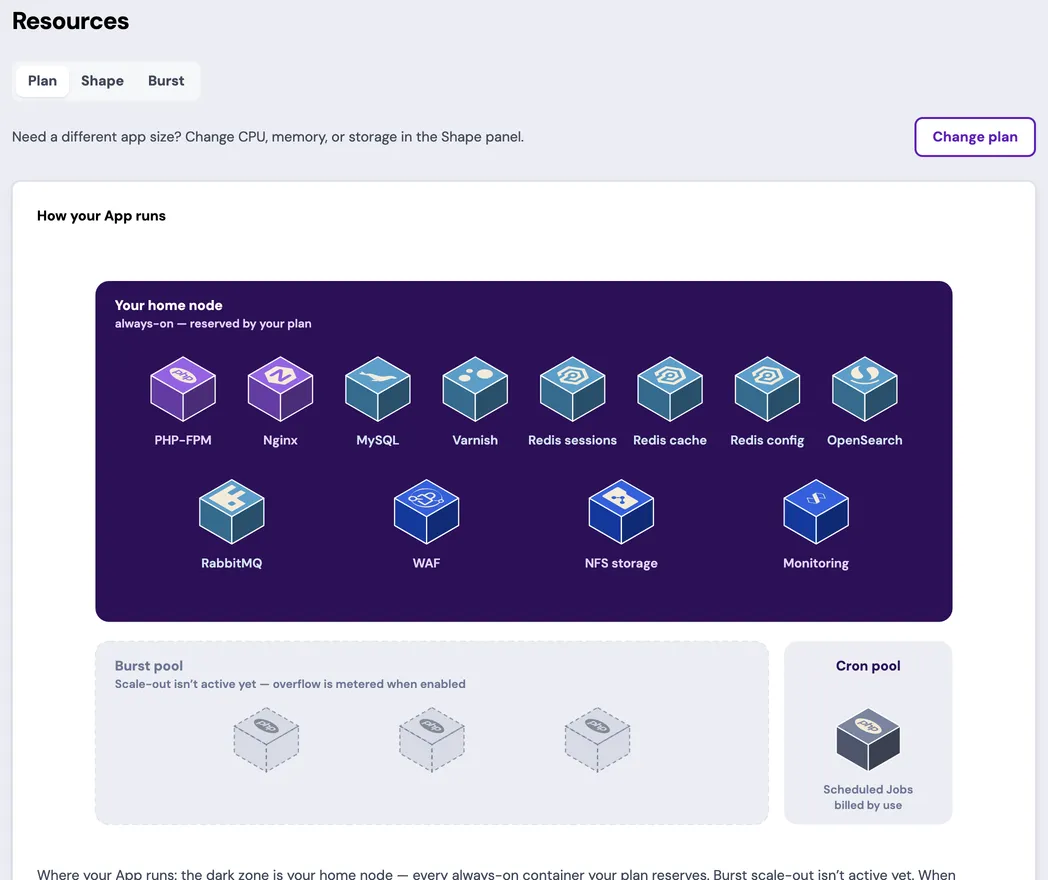
Review the Plan tab
Section titled “Review the Plan tab”The Plan tab opens with How your App runs. The diagram separates the always-on services reserved on Your home node from the Burst pool and the usage-billed Cron pool.
To review or change purchased CPU, memory, and storage, open the Shape tab, or select Change plan on the Plan tab to open the same panel. Shape has seven reservable-service memory sliders plus the supported service toggles:
- Enter the new CPU, service-memory, and storage amounts.
- Review the new monthly price and the amount that will appear on the next bill.
- Confirm the change.
- Follow the resize status until it reaches a final result.
Storage can grow but can’t be reduced. A smaller CPU or memory shape is also rejected when the App’s required services no longer fit.
Configure automatic storage expansion
Section titled “Configure automatic storage expansion”On the Shape tab, database and workspace storage can expand automatically when usage reaches the configured threshold. Media storage isn’t part of automatic expansion.
For each supported storage type:
- Turn automatic expansion on or off.
- Optionally set a maximum storage ceiling.
- Review the displayed billing effect.
- Save the storage setting.
Each expansion adds a fixed storage block to the purchased plan and permanently raises that storage amount. If you leave the ceiling blank, synsmarts uses the automatic ceiling shown in the portal. The ceiling is never silently exceeded.
Review the allocation breakdown
Section titled “Review the allocation breakdown”The Plan tab also shows where purchased capacity goes. MySQL, the Valkey roles, OpenSearch, RabbitMQ, Varnish, and NFS use customer-set memory reservations; each reservation is also that service’s hard limit, except NFS, whose limit is 1 GiB or the reservation if larger. PHP-FPM, Nginx, Scheduled Jobs, and the WAF don’t have customer memory reservations or limits. They use the unallocated headroom, and PHP-FPM worker count and OPcache grow when a service reservation is reduced. The breakdown is read-only outside the Shape controls.
Choose spike behavior
Section titled “Choose spike behavior”The Burst tab’s Burst & scale-out card controls CPU spike behavior and whether PHP adds copies beyond the plan. It doesn’t show memory controls for PHP-FPM, Nginx, Scheduled Jobs, or the WAF: those workloads always use unallocated memory headroom without a customer-set limit. Reservable services don’t use memory past their reservation, except NFS, whose container can use up to 1 GiB or the reservation if larger.
Choose one:
- Always keep my site fast (default) — the App draws whatever it needs. Use beyond the free allowance is metered.
- Keep my site fast, with a spending limit — the App draws extra CPU up to a multiple you choose, and the limit follows the plan when you resize.
- Never spend more than my plan — CPU is held to the plan, so heavy traffic slows pages down instead of using more CPU.
- Custom, per container — set each container’s CPU spike limits yourself.
The mode names describe CPU controls, not a maximum bill. Memory use above the plan is still metered, and a spend cap only sends alerts. The final invoice determines the amount charged.
PHP adds copies beyond the plan only when its spike setting has no limit: Always keep my site fast, or Unlimited for PHP-FPM under Custom, up to the copies number set there. The extra copies are metered.
Select Apply changes to submit.
Follow the resize
Section titled “Follow the resize”Applying resource changes restarts the affected App services. A MySQL, cache, or NFS memory change, or an NFS CPU spike limit change, serves a temporary maintenance page while the service restarts. An OpenSearch memory change replaces the search node, which deletes the catalog index, and synsmarts rebuilds it from the database. A rebuild usually takes minutes, and a catalog of several hundred thousand products can take up to about an hour. On Magento 2.4.7 or later using Magento’s built-in OpenSearch search, category and search pages start empty and fill as the rebuild progresses. On other Magento setups, they return when the rebuild finishes. Shopware keeps serving from the database until the rebuild finishes. The resize completes only when the rebuild does. If the rebuild fails, the resize reports failed with the new memory size still applied. On Magento 2.4.7 or later using the built-in OpenSearch search, the catalog search indexer also stays paused so Magento doesn’t retry it. Select Rebuild search index on the Search service page to run it again. See Index rebuilds for sizing the OpenSearch reservation.
A reduction never moves the App. An increase can apply where the App runs or move the App to where the new size fits. The resize status distinguishes an in-place restart from a move, and a move also sends an email before it starts and when it completes. A move that needs new capacity waits for it within a bounded window rather than stalling indefinitely. If the window runs out, the resize status reports a terminal failure. No email announces the failure, so the status is the signal to watch.
A move only proceeds when the App can keep serving without the pod being moved. Rather than take the last serving replica offline, the resize fails and the App keeps serving.
How long a resize takes depends on which of these paths it follows; the status is the progress signal. Keep the page open until the status reports completion or a terminal failure, then test the live App. Don’t submit another resource change while one is active.
Recover from a problem
Section titled “Recover from a problem”- If the page reports that the configuration is stale, select Load the latest configuration and repeat the edit.
- If another operation is active, wait for it to finish.
- If the configuration exceeds the plan, correct the App’s configuration file or change the plan.
- If a write includes legacy PHP-FPM or Nginx memory fields, remove them. The API rejects those fields as Dynamic memory isn’t editable.
- If the plan is too small for the App’s required services, choose a larger plan.
- If Change plan is unavailable, contact synsmarts support.
- If a resize fails or its status is unknown, select Load the latest configuration, review the current plan and allocation, and retry only after the prior operation is final.
- If a resize fails because the search index rebuild failed, the new OpenSearch memory is already applied. Select Rebuild search index on the Search service page instead of resubmitting the resize.
- If a resize fails with the reason OpenSearch change refused before the search node was replaced, the search node is unchanged and keeps its index. Contact synsmarts support.
- If a MySQL, cache, or NFS change fails, the App leaves maintenance once synsmarts confirms the service is healthy, and the resize reports failed. If health can’t be confirmed, the App stays in maintenance and our team is alerted. Contact synsmarts support instead of resubmitting the resize.
- If resource editing is unavailable for the App, contact synsmarts support.