

Connect a GitHub repository
Use the App’s Deploys section to connect the repository that contains the code for that App.
Connecting a repository makes Git available as a deploy source. It doesn’t deploy code, disable Workspace deploys, change the framework or resource shape, choose a branch, or enable automatic deploys.
Before you begin
Section titled “Before you begin”You need:
- a provisioned synsmarts App;
- a Team owner or admin role;
- permission on GitHub to install or update a GitHub App for the repository’s organization or personal account;
- a GitHub account that can access the installation you connect.
The synsmarts Deploy GitHub App uses installation access. synsmarts doesn’t ask you to paste a personal access token or repository password.
Start from Deploys
Section titled “Start from Deploys”- Open the App in the synsmarts portal.
- Select Deploys.
- In How this app deploys, select Connect a repo.
- On Connect GitHub, select Continue to GitHub.
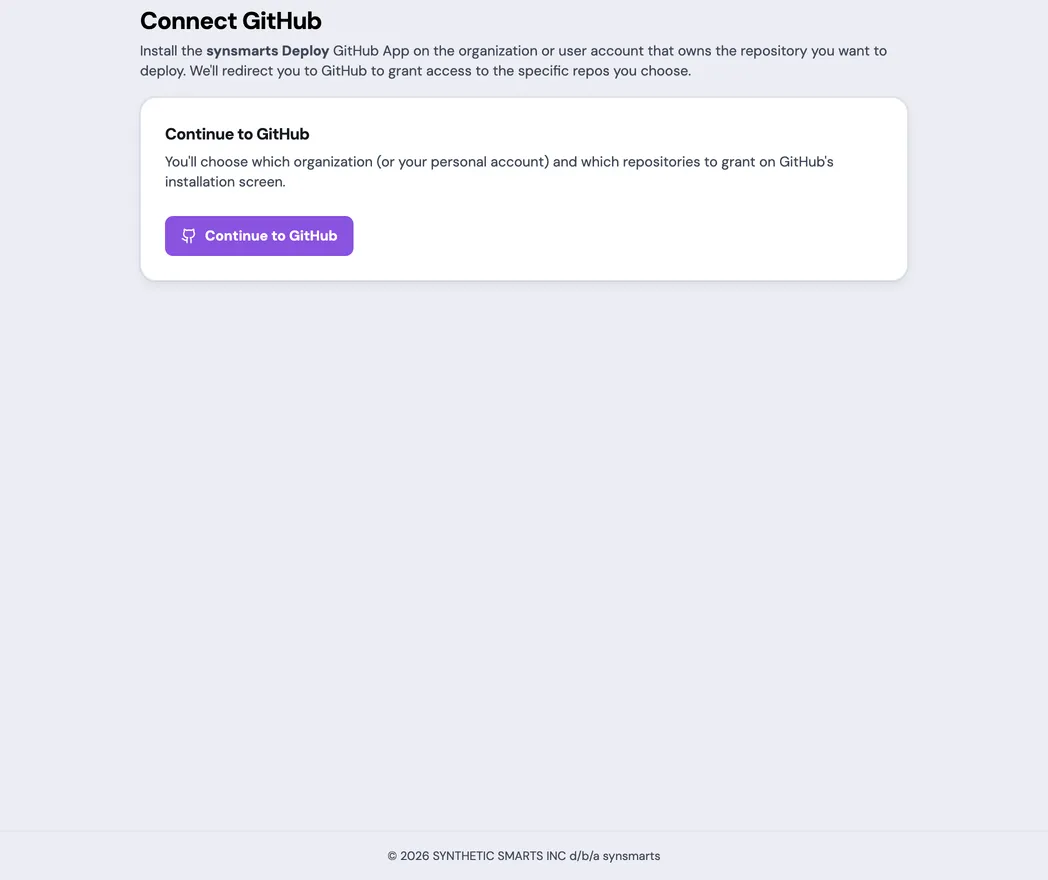
If the portal can’t load the App details, return to Deploys and retry after provisioning finishes. Only owners and admins see the connection action.
If GitHub doesn’t open after you select Continue to GitHub, disable any pop-up or navigation blocker for the portal and try again.
Choose a GitHub installation
Section titled “Choose a GitHub installation”GitHub opens the installation screen for the synsmarts Deploy App.
- Choose the organization or personal account that owns the repository.
- Grant access to the required repository. Use repository-specific access when the App doesn’t need every repository in the account.
- Complete the GitHub installation or update.
- When GitHub asks you to authorize the synsmarts Deploy App, authorize it. synsmarts uses this one-time check to confirm that your GitHub account can access the installation, then discards the GitHub sign-in. GitHub skips the prompt after the first time.
GitHub returns you to synsmarts. If the Team has more than one active installation, the Choose a GitHub account screen lists them. Select Deploy from account for the account that owns the repository; synsmarts doesn’t guess based on the most recent installation.
Select the repository
Section titled “Select the repository”- On Select a repository, choose the repository.
- Select Connect repo.
The repository is connected to the existing App, and the portal returns to Deploys. A green Connected status confirms that the GitHub installation is active.
One repository can back more than one App. The repository picker shows other Apps already using that repository. When multiple Apps use it, use a different branch or tag per App unless you intentionally want the same push to release more than one App.
If the repository is missing
Section titled “If the repository is missing”If no repositories are shown, or the required repository is absent:
- Open the GitHub installation settings for the synsmarts Deploy App.
- Add the required repository to the installation.
- Return to synsmarts and restart from Connect a repo.
Confirm that you selected the correct GitHub account when the Team has multiple installations. Repository access granted to one installation isn’t available through another.
If your GitHub account can’t access the installation
Section titled “If your GitHub account can’t access the installation”synsmarts connects an installation to a Team only when the GitHub account that authorized the connection can access that installation on GitHub. If the connection reports that your GitHub account doesn’t have access:
- Confirm that you’re signed in to GitHub as the account you expect. To use a different account, sign out of GitHub and restart from Connect a repo.
- Ask an owner of the GitHub organization to grant your account access to a repository in the installation, or to complete Connect a repo themselves from an owner or admin account on this Team.
If you declined the GitHub authorization prompt, restart from Connect a repo; nothing was connected.
If the installation isn’t connected to this Team
Section titled “If the installation isn’t connected to this Team”Only Team owners and admins can connect a GitHub installation to a Team.
A GitHub installation is connected per Team. If you belong to more than one Team, start Connect a repo from the App you’re connecting: synsmarts binds the installation to that App’s Team and returns you to its Select a repository page.
If Connect repo reports that the GitHub installation isn’t connected to this Team, return to the App’s Deploys page, select Connect a repo, and complete Continue to GitHub again. The same message appears when GitHub has suspended the installation; reactivate it in GitHub’s installation settings. If the message persists, open a support ticket from the App and include the GitHub account name.
Deploy after connecting
Section titled “Deploy after connecting”Connecting returns to Deploys without releasing code. In Deploy now, select the branch, tag, or exact commit to release, then select Deploy.
Automatic deploy remains off until a Team owner or admin enables Auto-deploy
when I push and saves a branch, a tag, or a tag pattern such as v*.
Update GitHub access
Section titled “Update GitHub access”If the Deploys page shows Reconnect needed, open the connection action and reinstall or reactivate the GitHub App for the repository owner. Grant access to the required repository and return to synsmarts.
Updating an installation restores repository access; it doesn’t start a deploy or re-enable a previously disabled automatic-deploy setting by itself.
Prepare the first deploy
Section titled “Prepare the first deploy”After the repository is connected:
- Confirm that Connected repo shows the expected
owner/repository. - In Deploy now, keep Git selected.
- Confirm the branch or tag. The picker initially uses the repository’s default branch.
- Select Deploy and follow the deploy detail page to a terminal result.
Disconnecting later
Section titled “Disconnecting later”Disconnecting a repository makes Git unavailable for new deploys. Workspace deploys remain available. Treat disconnect as a deliberate operational change, not a troubleshooting step for a failed deploy. It also clears the App’s automatic-deploy configuration. Existing deploy history and the currently served release remain visible.