

Manage NFS paths
Open an App and select NFS Paths. Configure only paths that must be shared across App replicas or workload types.
Only Team owners and admins can change shared paths.
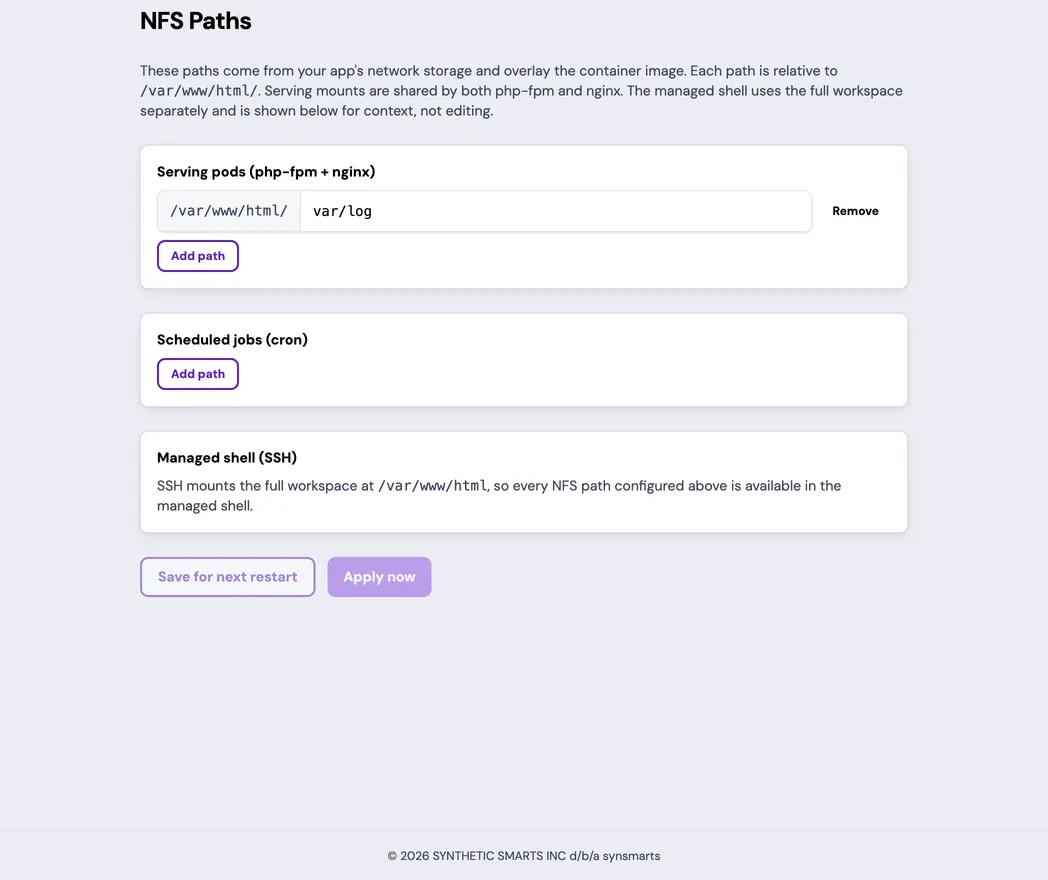
Understand shared paths
Section titled “Understand shared paths”Paths are relative to the App workspace at /var/www/html/. Enter
var/uploads, for example, rather than the full workspace path.
The page separates two consumers:
- Serving pods (php-fpm + nginx) covers the web runtime and web server.
- Scheduled jobs (cron) covers commands run by the scheduled-job runner.
A path can be shared with one or both consumers. Managed shell (SSH) can inspect the full workspace regardless of this selection.
Platform defaults are marked in the editor. You can remove a default when the App no longer needs it, but first confirm that both serving code and scheduled jobs have stopped using the path.
Some directories must always come from the built App image. The portal rejects those paths instead of allowing them to be moved into shared storage:
- Application code and entry points:
app,bin,vendor,index.php, andpub/index.php. - Generated content the runtime rebuilds:
generated,var/generated,var/view_preprocessed, andpub/static. - Any directory inside
bin,vendor, or one of those generated directories, such aspub/static/frontend. The one exception ispub/static/_cache, which can be shared. - The workspace root and the whole
vardirectory. Share specificvarsubdirectories instead, such asvar/logorvar/locks. - Single files such as
sitemap.xmlandpub/sitemap.xml; shared paths are directories.
The rejection message names the reason for each path. Paths that overlap media storage are also rejected: a shared path can’t equal, contain, or sit inside a media-managed path, so each directory has one storage backend.
On a Magento App, scheduled jobs run the App image read-only, so a
Scheduled jobs (cron) path has one more rule. It must be under var/, such
as var/uploads or a module’s own var/<vendor> directory, or be app/etc,
pub/media, or pub/sitemaps. It also can’t sit inside another Scheduled-jobs
path. The portal rejects any other Scheduled-jobs path before it applies the
change, so scheduled jobs keep running. Serving-pod paths don’t have this rule.
Add a path
Section titled “Add a path”- Choose Serving pods (php-fpm + nginx) or Scheduled jobs (cron).
- Add the relative workspace path.
- Add the same path to the other consumer when both need shared access.
- Review the apply impact.
- Save for the next restart or select Apply now.
Use shared storage only for data that must persist across releases or be visible to more than one App instance. Keep application code and generated build artifacts in the App image.
Remove a path
Section titled “Remove a path”- Confirm the App no longer reads or writes the shared directory.
- Remove the path from each consumer that no longer needs it.
- Apply the change.
- Verify the App and any scheduled command that previously used the path.
Removing a path doesn’t automatically migrate or delete its existing files. Update the App before removing the mount.
Choose when changes apply
Section titled “Choose when changes apply”How saved and applied configuration relate is explained in How App configuration is applied.
- Save for next restart records the desired path configuration without restarting services now.
- Apply now records the same configuration and starts the required restart.
The confirmation identifies the impact:
- A serving-path change restarts the web runtime and web server and can briefly affect availability.
- A scheduled-job-only change restarts the scheduled-job runner while App traffic remains online.
- A change to both groups performs both restarts.
Recover from a problem
Section titled “Recover from a problem”- If the portal rejects a path, use a supported workspace-relative path.
- If the revision is stale, select Load latest and repeat the edit.
- If another operation is active, wait for it to finish.
- If an apply is superseded, select Load latest and review the newer desired configuration.
- If an apply fails, stalls, or has unknown status, select Load latest before retrying. Verify which paths are active and which remain pending.