

Manage Vars and secrets
Open an App and select Vars.
Only Team owners and admins can change Vars or secrets.
Vars are unavailable until App setup completes. If the page says variables are unavailable, return to Overview and check the setup status.
The page has three sections:
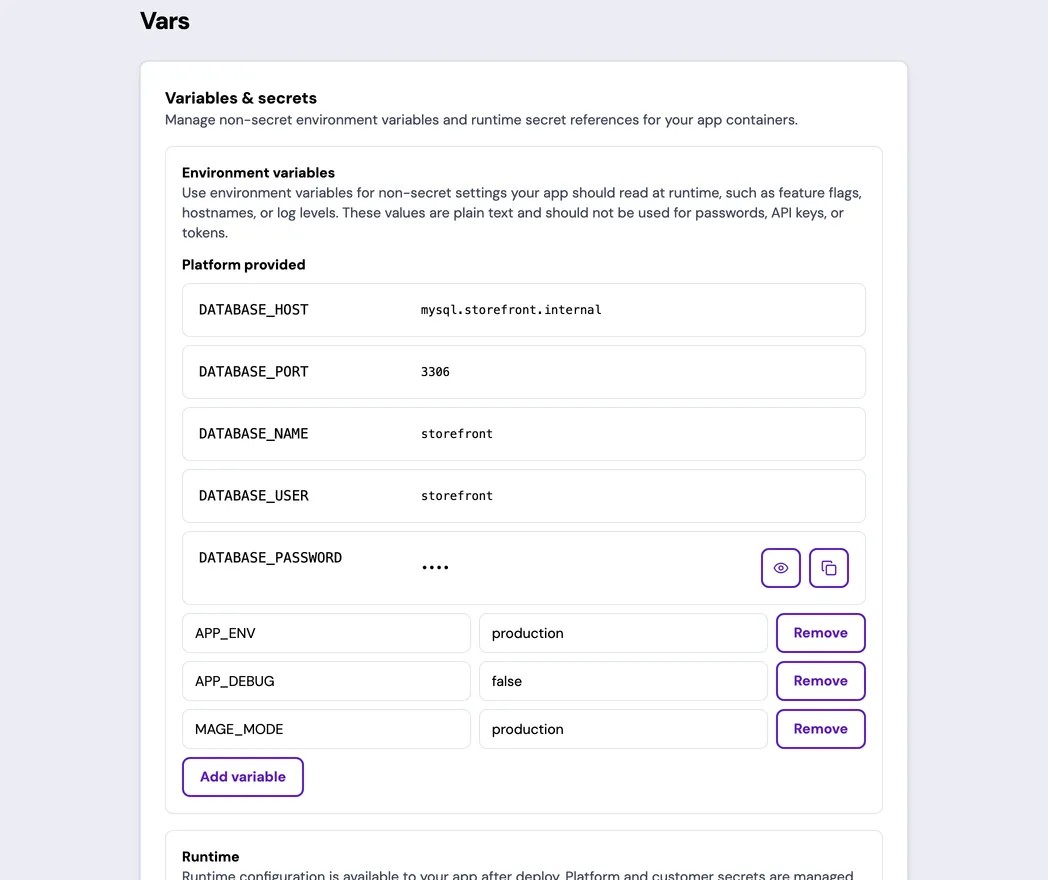
- Environment variables includes platform-managed values and customer-managed non-secret values.
- Runtime includes platform secret names and customer runtime secret references. Values you supply are never displayed.
- Build contains credentials used only during image builds.
Choose the correct value type
Section titled “Choose the correct value type”- Use an environment variable for non-secret runtime configuration.
- Use a runtime secret for passwords, API keys, tokens, private keys, and other sensitive values needed by the running App.
- Use a build secret only when the image build needs a credential.
Platform environment variables and platform runtime secret names are shown for context but can’t be edited.
Never put a secret value in an environment variable or commit it to the App repository.
Use the database connection details
Section titled “Use the database connection details”The Platform provided group at the top of Environment variables holds the
credentials your App uses to reach its own database: DATABASE_HOST,
DATABASE_PORT, DATABASE_NAME, DATABASE_USER, and DATABASE_PASSWORD.
synsmarts generates
and manages these; you can’t edit them.
DATABASE_PASSWORD is masked. Two controls sit beside it:
- Copy puts the password on your clipboard without showing it. Use this when connecting a database client — the value never appears on screen.
- Reveal displays the password when you need to read or retype it. Select Hide to mask it again. It also re-masks automatically as soon as you switch to another window or application.
Only Team owners and admins can copy or reveal it, both actions are rate limited, and each retrieval is recorded in Team activity, noting whether the password was shown on screen or copied. Copying a password that is already revealed reuses the value on screen, so it doesn’t add a second entry. The account is scoped to your App’s own database schema, so it can’t read or change anything outside it.
synsmarts can rotate DATABASE_PASSWORD, for example after a security event.
Your App, cron, and shell switch to the new password on their own. A copy saved
in a database client or written into your own code stops working once the old
password is retired, so copy it again after a rotation, and have code read
DATABASE_PASSWORD from the environment instead of storing the value.
This is the one credential the portal will show you. Values you supply yourself stay write-only, as described below.
Add or edit an environment variable
Section titled “Add or edit an environment variable”- Select Add variable.
- Enter the name and value.
- Review the normalized name. The field converts names to uppercase
environment-variable form, such as
api keytoAPI_KEY; saving also removes leading and trailing underscores. - Select Save for next restart or Apply now.
Names must be unique and can’t conflict with names reserved for platform configuration. Names that normalize to the same value also conflict. Removing a variable returns the running App to the behavior it has when that variable is absent, which can break code that assumes it is always present.
Add a runtime secret
Section titled “Add a runtime secret”- Select Add secret ref.
- Enter the environment variable name and secret value.
- The portal defaults to all runtime containers. Open Advanced options and narrow the selection when only some processes need the credential, because the secret is injected only into the containers that declare it.
- Change the storage key only when the integration requires a different key.
- Select Save for next restart or Apply now.
Secret values are write-only. After a value is saved, the portal shows that a
value exists but never reads it back or displays it — the value field is masked
as you type it, and support can’t retrieve it for you. To rotate a secret,
enter the replacement value and apply the change. Re-enter the value when
changing the storage key or adding the secret to another runtime target. (The
platform-generated DATABASE_PASSWORD above is the one exception; synsmarts
issues that credential, so it can show it back to you.)
For a credential rotation or removal, use Apply now. A saved secret change doesn’t affect an already-running process until containers refresh.
Add a build secret
Section titled “Add a build secret”Build secrets are available only while building an App image. They aren’t added to the running App’s environment.
Select Add build secret when no slot exists. Magento Apps already show a COMPOSER_AUTH slot for Magento Marketplace or private Composer repository credentials. Enter the complete Composer authentication JSON document. Leaving the default slot empty doesn’t create a secret reference.
Build-secret values are also write-only. Enter a new value to rotate an existing build secret. A build secret is used by a later image build; selecting Apply now doesn’t rebuild the current image by itself.
Choose when changes apply
Section titled “Choose when changes apply”- Save for next restart records the desired configuration without restarting services now. The page shows Saved changes will apply on the next restart, or you can apply them now.
- Apply now records the same desired configuration and starts an App operation that restarts App containers. The confirmation dialog is titled Apply Vars changes?
The saved desired configuration is authoritative even while an apply is pending. A later managed restart also applies changes saved for the next restart.
Follow an immediate apply
Section titled “Follow an immediate apply”The page reports Saving changes…, then Saved — applying your changes… after the configuration commit is confirmed. The editor remains locked until the portal can load the resulting configuration.
After completion, the page reports Your variables and secrets were applied. Verify the App behavior that uses the changed value. For a runtime secret, verify the exact integration that consumes it. For a build secret, start and verify a build that requires it.
A secret value must never appear in the operation history, running configuration, or customer documentation.
See Variables and secret references for the value and visibility contract.
Recover from a problem
Section titled “Recover from a problem”- If the revision is stale, select Reload latest configuration and repeat the edit.
- If another operation is active, wait for it to finish.
- If an apply stepped aside for another App change, select Load the latest configuration. Your saved change remains in desired configuration and will apply through the newer operation.
- If validation rejects a name or value, correct the highlighted field.
- If the portal can’t confirm that an apply finished, select Load the latest configuration before retrying.
- If the change was saved but the latest configuration didn’t load, select Load the latest configuration again. Don’t re-enter a write-only secret until you know whether the original save succeeded.
- If an apply fails, adjust the configuration and save again, or load the latest configuration if the problem persists.
- If you can’t determine whether a write-only value was saved, contact support before rotating it again.