

Manage backups
Open an App and select Backups to see the recovery layers protecting it. How backups and restores work explains the model behind this page; the exact protection layers and their retention are listed in Backup types and retention.
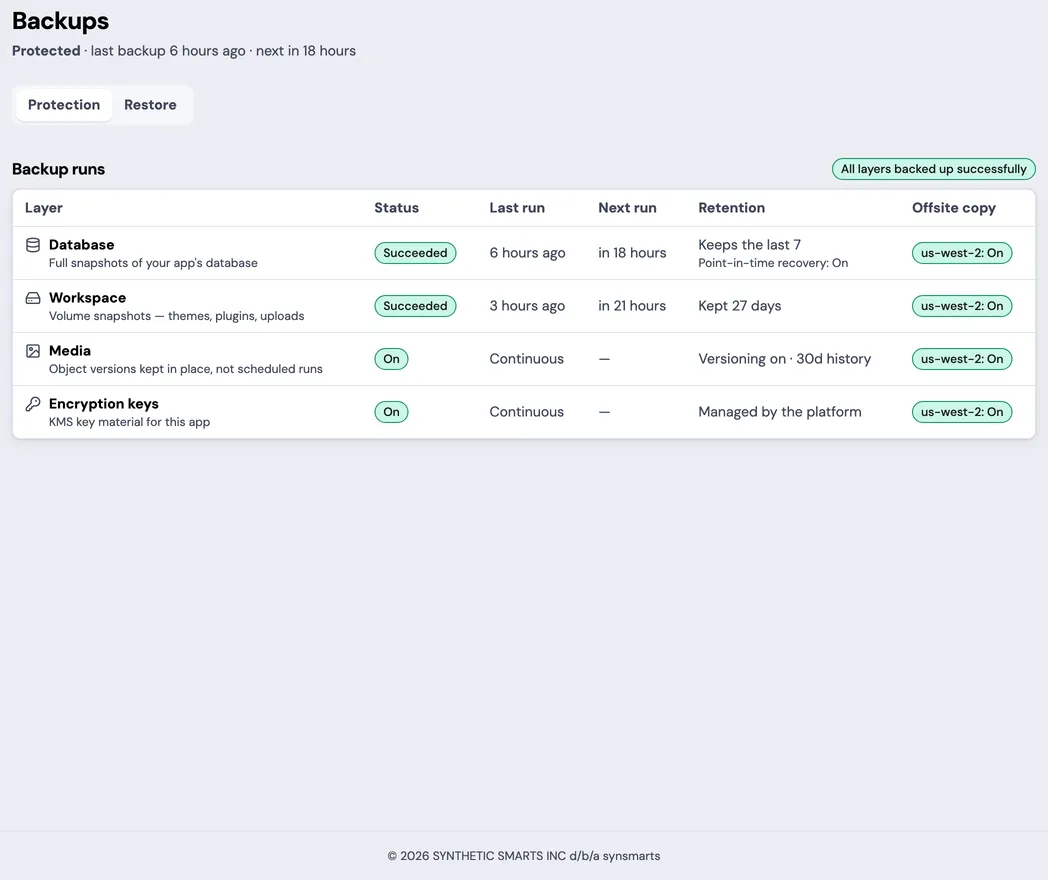
Understand the page
Section titled “Understand the page”The page separates protection into two groups:
- Always-on protection shows point-in-time database coverage, media versioning, and cross-region replication health.
- Recovery points lists discrete database backups and App-file snapshots.
The page shows Next database backup and Next app-files backup separately when their schedules are available. They are independent jobs and can have different next-run times.
Database, App-file, media, and cross-region protection are separate layers. A healthy status for one layer doesn’t prove another layer is healthy.
Check page freshness
Section titled “Check page freshness”The Next check in minutes:seconds countdown shows when the backup-health mirror expects to evaluate protection again. It isn’t the next backup time. The element’s detail shows when the oldest independent backup check was updated.
If a check is stale, the portal reports the last known state instead of treating the missing update as proof that no backup exists. Refresh the page or wait for the next check before making a recovery decision from stale data.
Checking… or Not checked yet means no completed evaluation is available for that layer. A completed negative result uses layer-specific wording such as Off, Not replicated, Pending first copy, or Not enabled for this app.
Review always-on protection
Section titled “Review always-on protection”- Point-in-time recovery shows the database time range that can be selected for a restore. It can be unavailable on an App with a single-instance database.
- Media files shows whether object versioning is enabled and how long overwritten versions are retained.
- Cross-region disaster recovery reports Media files, App files, Database storage, and Encryption keys in the second AWS region. Replication on for media means the continuous replication rule is enabled; it isn’t confirmation that every existing object has copied. Point-in-time recovery is single-region.
Review a recovery point
Section titled “Review a recovery point”Use the status and timestamp together:
- Succeeded means the recovery point is available for its supported restore operation.
- Starting, New, In progress, or Running means synsmarts is still creating it.
- A failed or unavailable item can’t be selected for a restore action.
Database backups and App-file snapshots protect different data. Confirm the target before starting a restore:
- Database backups restore the database only.
- App files cover the persistent files volume. Restoring one replaces every file in the volume and takes the site down briefly while it swaps; your database and media aren’t touched. There is no partial or per-file option — for a single file, use a Media version restore. A safety snapshot of the current files is taken automatically first, so a failed restore rolls back on its own. Restoring the snapshot the App already runs on is refused, and no files change.
- Media versions restore individual uploaded files or folders without restoring the database.
- Point-in-time recovery restores the database to a time inside the window shown by the portal.
Database retention is count-based. Media version retention is time-based. See Backup types and retention.
Only a Succeeded database-backup row shows Restore, and only when the current customer can initiate restores. Operator names for backup objects are replaced with customer labels such as Initial backup, Scheduled backup, Incremental backup, Full backup, or Backup.
Follow an active restore
Section titled “Follow an active restore”Only one restore can run for an App at a time. While one is active, the Backups page disables every database and media restore action and shows a progress panel.
- A database restore places the App in maintenance mode.
- A file or folder restore keeps the App online.
- Needs attention means the restore needs attention from our team. No customer action is required while that state remains active.
Don’t start a second restore through another browser session or API client. The one-active-restore rule covers database and media restores together.
A deploy can’t start while a database or workspace files restore is running. Wait for the restore to finish, then deploy.
After a database restore completes, the page keeps its history and identifies the pre-restore safety backup as the Undo point.
Read restore history
Section titled “Read restore history”Restore history shows the target, status, start time, and initiating customer. Terminal rows can also show a customer-safe failure reason.
A media folder restore can finish in the completed with errors outcome, shown
as Completed with errors. That means the batch finished but one or more
files were skipped. Review the restored, total, and skipped counts before
retrying. Don’t rerun the whole folder until you know which files still need
recovery.
For a database restore, Undo this restore appears only while the required safety backup still exists and the current role can initiate a restore. Media restore has no self-service Undo action. Previous object versions remain available for the retention window; see Undo a media restore for the support path.
Choose a restore procedure
Section titled “Choose a restore procedure”Restores replace current data. Read the confirmation carefully and verify the App after completion.
Understand unavailable actions
Section titled “Understand unavailable actions”Restore initiation is available only to Team owners and admins. History and an already-running restore remain visible to other Team roles.
Restore actions can be unavailable when:
- restore is turned off for the App;
- your Team role can’t initiate a restore;
- another database or media restore is active;
- the restore-history or App identity data didn’t load;
- the recovery point isn’t in a restorable state;
- point-in-time recovery has no available window; or
- media versioning isn’t enabled.
When part of the restore surface fails to load, the page says Restore actions are unavailable right now and retries automatically. Backup status remains visible.
Recover from a problem
Section titled “Recover from a problem”- If the page shows This app was not found, or you don’t have access to it, confirm the Team, App, and your membership.
- If backup loading fails, wait for the automatic retries, then reload the page once.
- If Next check is overdue or a status is stale, wait for the next health evaluation before assuming protection is absent.
- If a restore failed, read the customer-safe reason in Restore history before starting another restore.
- If a restore remains Needs attention, don’t retry it. Our team must resolve or stop the active workflow first.
- If restore is turned off and recovery is urgent, open an App-scoped support request.